Wi-Fi Services
FAQs related to IIUM Wi-Fi issues.
- How to Create an IIUM Wi-Fi Guest Account
- Trouble-shooting Issues Related to WI-FI
- How to forget SSID due to wireless maintenance
- How to Fix IIUM Wi-Fi Connection Problems (Students & Staff)
- Fix Wi-Fi connection issues
- Are personal routers allowed in IIUM?
- How do I connect to IIUM-Staff Wi-Fi?
- What should I do if my device can’t find the Wi-Fi network?
- What is MYREN and its role in IIUM?
- What does “Connected, no internet” mean?
- Cybersecurity Tips & Tricks: Security Guidelines for Using Public Wi-Fi
How to Create an IIUM Wi-Fi Guest Account
IIUM provides temporary Wi-Fi access for visitors/guests through the IIUM-Guest network. Here’s how to get access:
Option 1: Self-Registration (For Short-Term Guests)
-
Connect to "IIUM-Guest" Wi-Fi (no password required).
-
Open a browser → You will be redirected to the IIUM Guest Portal.
-
Register as a Guest:
-
Fill in:
-
Name
-
Mobile Number (for OTP verification)
-
Email
-
Purpose of Visit (e.g., meeting, event)
-
-
Agree to the terms & conditions.
-
-
Verify via OTP (sent to your phone).
-
Login with the provided credentials.
✅ Access granted for 24 hours (renewable if needed).
Option 2: Sponsored Guest Account (For Long-Term Visitors)
If you’re a guest speaker, vendor, or visiting researcher, an IIUM staff member must sponsor your account:
-
The staff submits a request via:
-
i-FIRST (Ticket category: Wi-Fi Access Request)
-
Email ICT Help Desk (servicedesk@iium.edu.my) with:
-
Guest’s full name, contact, and duration of stay.
-
Reason for access (e.g., conference, collaboration).
-
-
-
Once approved, the guest receives login details via email/SMS.
Important Notes
-
Guest accounts expire after the approved duration.
-
Speed may be limited compared to student/staff Wi-Fi.
-
Commercial use is prohibited (only for official visits).
Troubleshooting
❌ Not redirected to the login page?
-
Manually open: http://captive.apple.com (iOS) or any HTTP website.
❌ OTP not received?
-
Check spam folder or request a resend.
❌ Account expired?
-
Re-register or ask your IIUM sponsor to extend access.
Need Help?
-
ICT Help Desk: ☎️ 03-6421 6666 | 📧 servicedesk@iium.edu.my
-
Walk-in: Level 1, ITD Building, Gombak Campus
Note: Misuse of guest accounts may result in access termination. 🔐
Trouble-shooting Issues Related to WI-FI
IIUM TACREQ yourmatricnumber to 15888 . Example : IIUM TACREQ 202073
2. Install other browsers such as Internet Explorer(IE) or Mozilla Firefox and use it to login instead of Google Chrome/ Microsoft Edge.
3. Removing the network adapter then installing it back(but remember do not uninstall the driver when asked to) : https://kb.wisc.edu/page.
- Try clearing your web browser history by clearing the cache and ALL the history.
- Install other browsers such as UC Browser or Mozilla Firefox and use it to login instead of Google Chrome or default android browser.
- If all fails, please bring your device to ITD ICT Services Help Desk at your respective campus during office hours.
53100 Kuala Lumpur,
Malaysia
Fax : 603-6421 4888
Email : servicedesk@iium.edu.my
Website: http://www.iium.edu.my/
Information Technology Department (ITD Kuantan)
International Islamic University MalaysiaJ
Jalan Sultan Ahmad Shah
Bandar Indera Mahkota
25200 Kuantan, Pahang Darul Makmur
Malaysia.
Tel : 609-570 4666
Fax : 609-571 6774
Email: helpdeskktn@iium.edu.my
Website: http://www.iium.edu.my/office/
International Islamic University Malaysia Gambang Campus
Administration Building
Jalan Gambang-Maran, 26300 Gambang,
Pahang Darul Makmur, Malaysia
CFS Gambang general line : 09-5183400 ext(3435) during office hours or email servicedeskcfs@iium.edu.my
Thank you.
--
How to forget SSID due to wireless maintenance
How to forget SSID due to wireless maintenance
Use the instructions below to forget an SSID (Wireless Network) on your device as part of troubleshooting or as needed.
iPhone
- Go to settings > Wi-Fi
- Touch the blue “i” next to the Wi-Fi symbol of the SSID that you want to forget.
- When the next page comes up, touch “Forget This Network”.
- When the prompt comes up, touch “Forget”.
Apple OS X
- Open "System Preferences" and open "Network".
- Select the Wi-Fi adapter - Not any other networking adapters, just the Wi-Fi.
- Click the "Advanced..." button.
- Make sure you disconnect from the SSID using the Wi-Fi icon at the top of your computer.
- In the "Preferred Networks" pane, look for the SSID.
- Select the SSID and click the "minus" button to delete it.
- Click “OK”, and at the next window, click “Apply”.
Android device
- Touch “Settings” followed by “Connections”.
- Touch Wi-Fi.
- Touch the SSID under “CURRENT NETWORK”.
- Touch “FORGET”.
Windows Machine
- Click on the Start menu, type “Settings”, and Press enter.
- Click on “Network & Internet”.
- On the left-hand side, click on “Wi-Fi”.
- Click on “Show available networks”.
- In the window that pops up in the lower right-hand corner, right-click on the SSID that you want to forget.
- Click on “Forget”.
Remember that when your password expires, is changed, or you forget the SSID, you will have to enter your credentials again to login.
When asked to trust certificate please make sure the domain is:
- iiumwifilogin2.iium.edu.my
- iiumwifilogin3.iium.edu.my
For any inquiries, please contact the ITD Service Desk at extension 6666.
How to Fix IIUM Wi-Fi Connection Problems (Students & Staff)
if you're unable to connect to IIUM-Student or IIUM-Staff Wi-Fi, follow these troubleshooting steps:
Step 1: Basic Checks
✅ Ensure you’re in range of an IIUM Wi-Fi hotspot (Gombak/Kuantan/Gambang/Pagoh).
✅ Restart your device (phone/laptop) and try reconnecting.
✅ Turn Wi-Fi off/on or toggle Airplane Mode for 10 seconds.
Step 2: Correct Wi-Fi Network & Login
For Students
-
SSID:
IIUM-Student -
Username: Matric number (e.g.,
G1234567) -
Password: Same as i-Ma’luum password.
For Staff
-
SSID:
IIUM-Staff -
Username: Staff email (without
@iium.edu.my) -
Password: Staff email password.
⚠️ If login fails:
-
Reset your password via:
-
Students: i-Ma’luum Password Reset
-
Staff: IIUM Staff Portal
-
Step 3: Forget & Reconnect Network
-
Go to Wi-Fi settings → Forget "IIUM-Student" or "IIUM-Staff".
-
Reconnect and re-enter credentials.
Step 4: Check for Blocked Devices
-
If you see "Access Denied", your device may be blocked (e.g., due to multiple failed attempts).
-
Wait 15 minutes or contact ICT Help Desk (03-6421 6666).
Step 5: Update Device Settings
For Windows
-
Press Win + R → Type
ncpa.cpl→ Open Network Connections. -
Right-click Wi-Fi → Disable → Wait 10 sec → Enable.
For Android/iOS
-
Go to Settings → Wi-Fi → Advanced.
-
Set IP settings to DHCP (not static).
For macOS
-
Go to System Preferences → Network.
-
Select Wi-Fi → Advanced → TCP/IP → Renew DHCP Lease.
Step 6: Report Persistent Issues
If Wi-Fi still doesn’t work:
-
Submit a ticket via i-FIRST.
-
Contact ICT Help Desk:
-
☎️ 03-6421 6666 (Gombak)
-
📱 WhatsApp: 016-983 2415
-
📧 Email: servicedesk@iium.edu.my
-
Common Wi-Fi Errors & Fixes
| Error | Solution |
|---|---|
| "Can’t connect to this network" | Forget network & reconnect |
| "Limited connection" | Renew IP (DHCP) or restart router |
| "Authentication failed" | Reset password & check credentials |
| "No internet access" | Wait 5 mins or report to ITD |
Need Immediate Help?
-
Visit ITD Help Desk (Level 1, ITD Building, Gombak).
-
Check ITD Website for updates.
Note: Using personal routers/hotspots is prohibited in IIUM—may disrupt campus Wi-Fi! 📡
Fix Wi-Fi connection issues
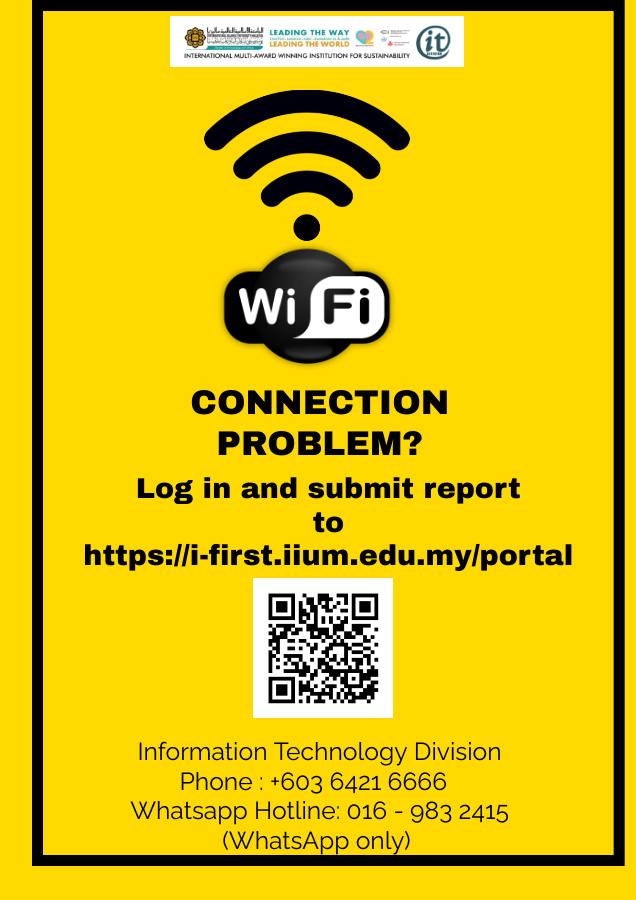
Fix Wi-Fi connection issues. Log in and submit report to https://i-first.iium.edu.my/portal
Are personal routers allowed in IIUM?
Q: Are personal routers allowed in IIUM?
A: No. Unauthorized devices (routers, switches, hubs) are prohibited and may result in disciplinary action.
How do I connect to IIUM-Staff Wi-Fi?
Q: How do I connect to IIUM-Staff Wi-Fi?
A:
-
Select SSID "IIUM-Staff".
-
Use your IIUM email username (without
@iium.edu.my) and email password. -
For first-time registration, connect to "IIUM-Staff_Registration" and follow browser prompts.
.png)
What should I do if my device can’t find the Wi-Fi network?
A:
If your device can’t detect the Wi-Fi network, try the following steps:
-
✅ Ensure the Wi-Fi feature is turned on in your device settings.
-
📡 Check if the router is powered on and actively broadcasting the network.
-
📶 Make sure you are within range of the Wi-Fi signal.
-
🔄 Restart both your router and your device to refresh the connection.
If the problem persists, please contact the ITD Service Desk for further assistance.
📧 servicedesk@iium.edu.my | ☎️ 03-6421 6666 | 📱 WhatsApp 016-9832415
What is MYREN and its role in IIUM?
Q: What is MYREN?
A: MYREN stands for Malaysian Research and Education Network. It is a high-speed, dedicated network developed to support the research and education sectors in Malaysia.
Q: Who manages MYREN?
A: MYREN is managed by the Ministry of Higher Education (MOHE) in collaboration with the Malaysia Digital Economy Corporation (MDEC).
Q: What is the purpose of MYREN in IIUM?
A: MYREN provides high-speed internet connectivity to support research, teaching, learning, and collaboration within IIUM and with external institutions globally.
Q: What institutions are connected through MYREN?
A: It connects all public and private universities, polytechnics, community colleges, research institutions, and teaching hospitals across Malaysia.
Q: How is MYREN connected internationally?
A: MYREN is connected to other global research networks via TEIN4 (Trans-Eurasia Information Network), enabling international academic and research collaboration.
Q: What is MYREN-X?
A: MYREN-X is an enhancement initiative under MYREN that aims to provide advanced research computing services and support the development of cyberinfrastructure in education and research.
Q: How is MYREN delivered across Malaysia?
A: MYREN operates through 7 regional Points of Presence (PoPs) to ensure broad and reliable network coverage.
What does “Connected, no internet” mean?
Q: Why does my device say “Connected, no internet”?
A:
This message means your device is successfully connected to the Wi-Fi router, but the router itself is not connected to the internet. Possible causes include:
-
Issues with your internet service provider (ISP)
-
Problems with the modem or router
-
Temporary network configuration errors
Recommended Actions:
-
Restart your modem and router
-
Check if other devices have internet access
-
Contact your ISP if the issue persists
Cybersecurity Tips & Tricks: Security Guidelines for Using Public Wi-Fi
This awareness campaign emphasizes the importance of secure Wi-Fi usage in public spaces. While public Wi-Fi networks offer convenience, they can expose users to significant security risks, including data theft and unauthorized access. By adhering to the best practices outlined in the infographic below, you can safeguard your personal information and ensure your privacy. Remember, staying vigilant and implementing simple security measures can dramatically reduce your risks when using public Wi-Fi.