Microsoft Services
FAQs regarding services provided by Microsoft.
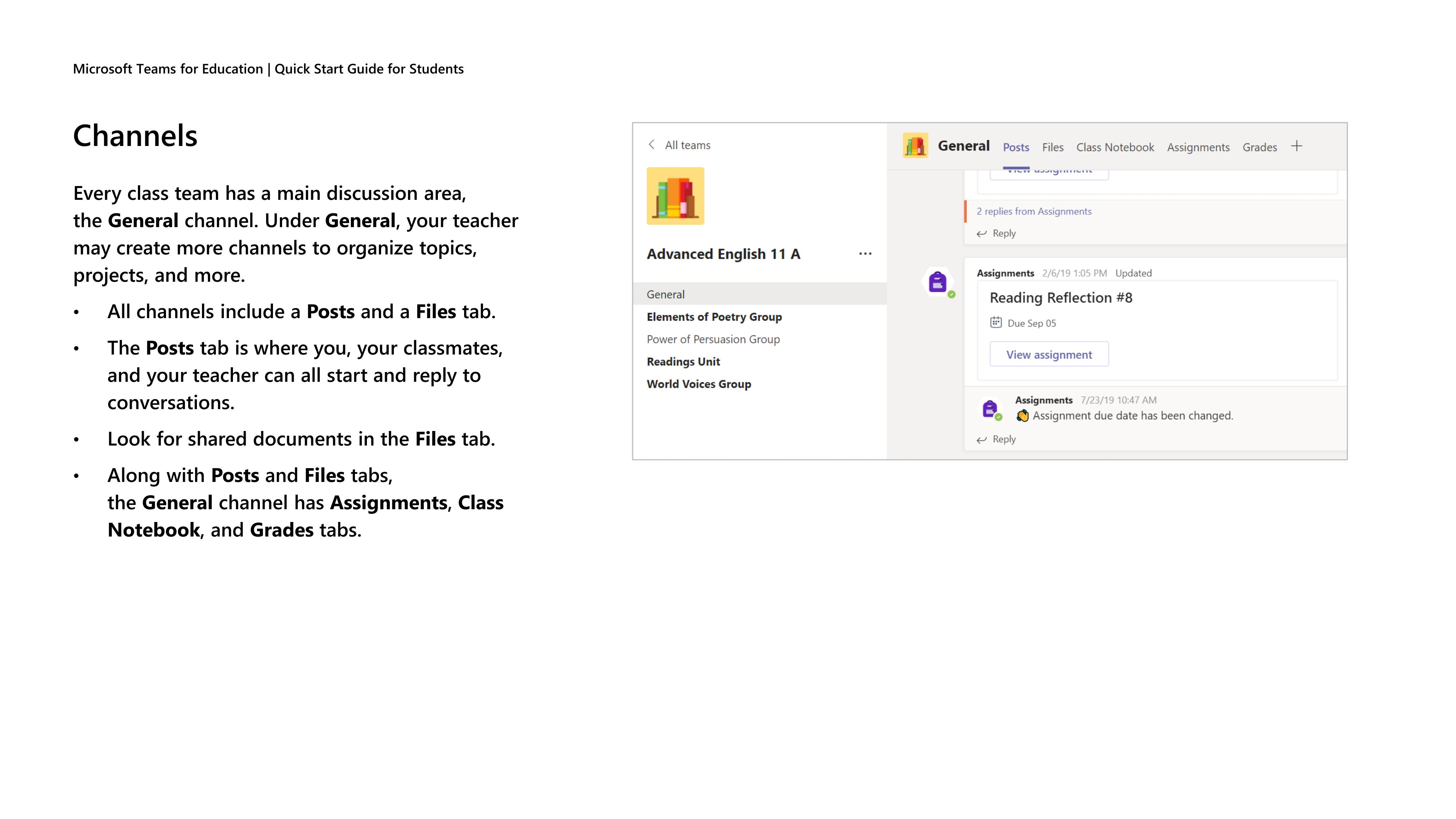
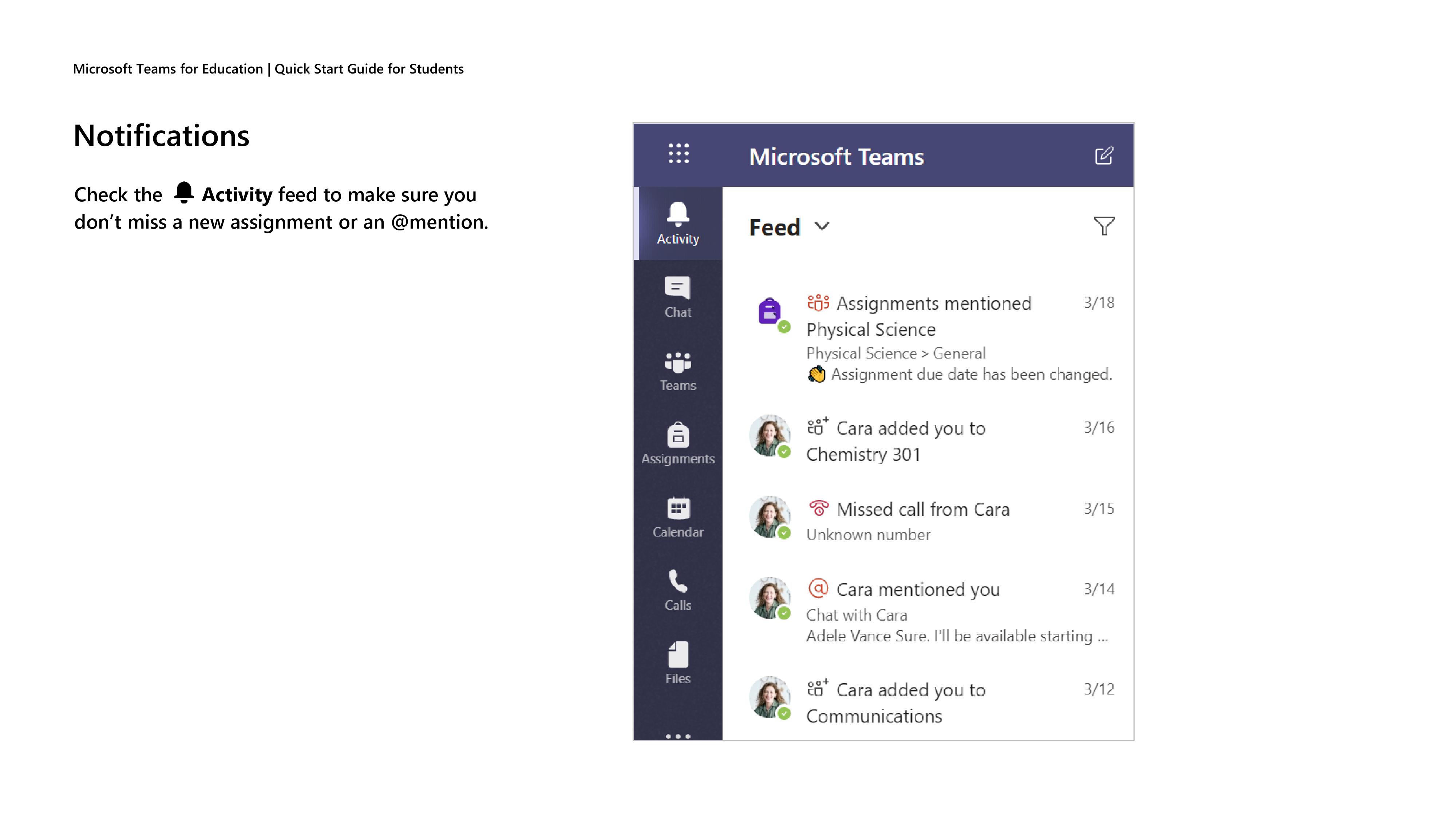
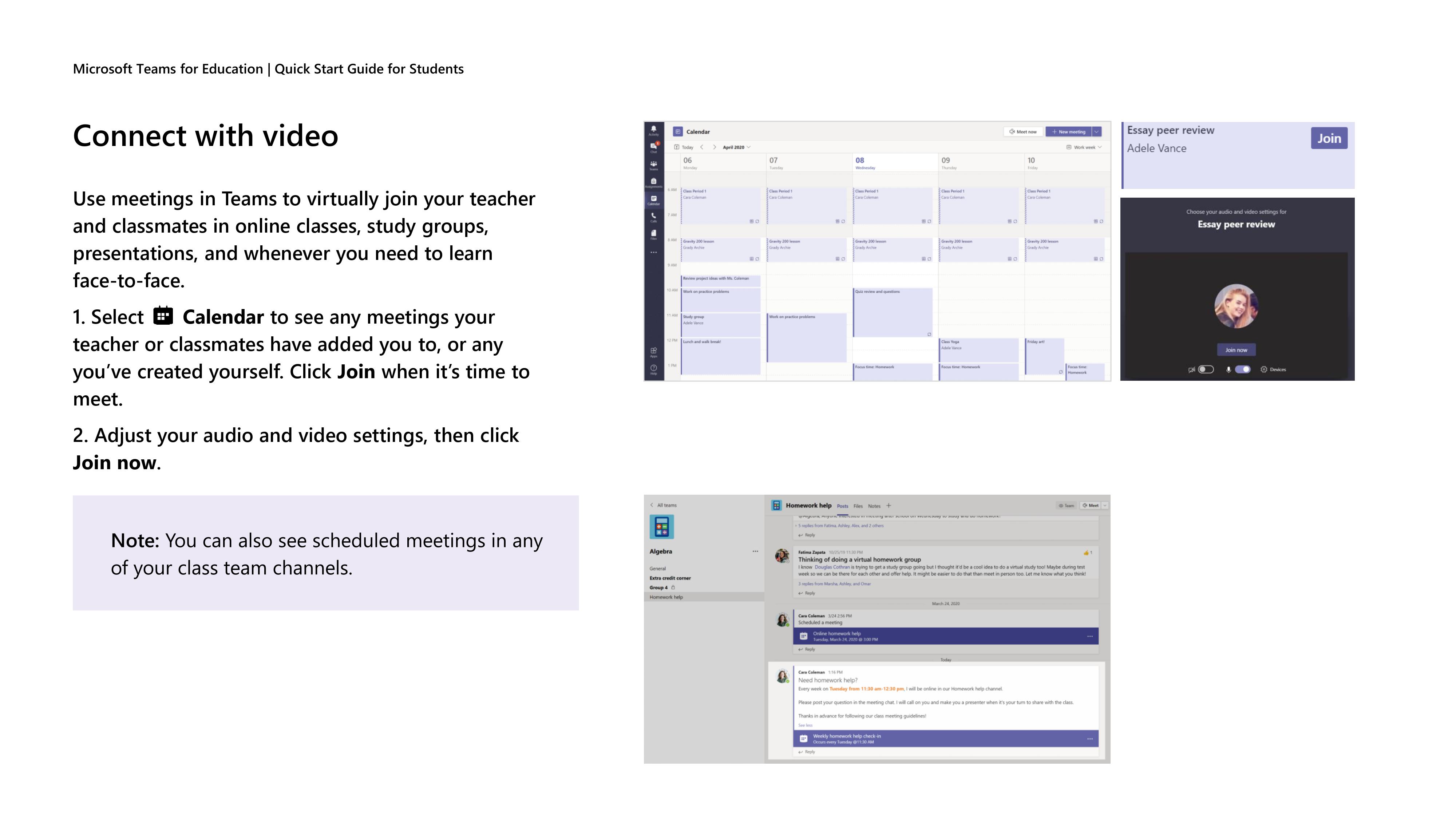
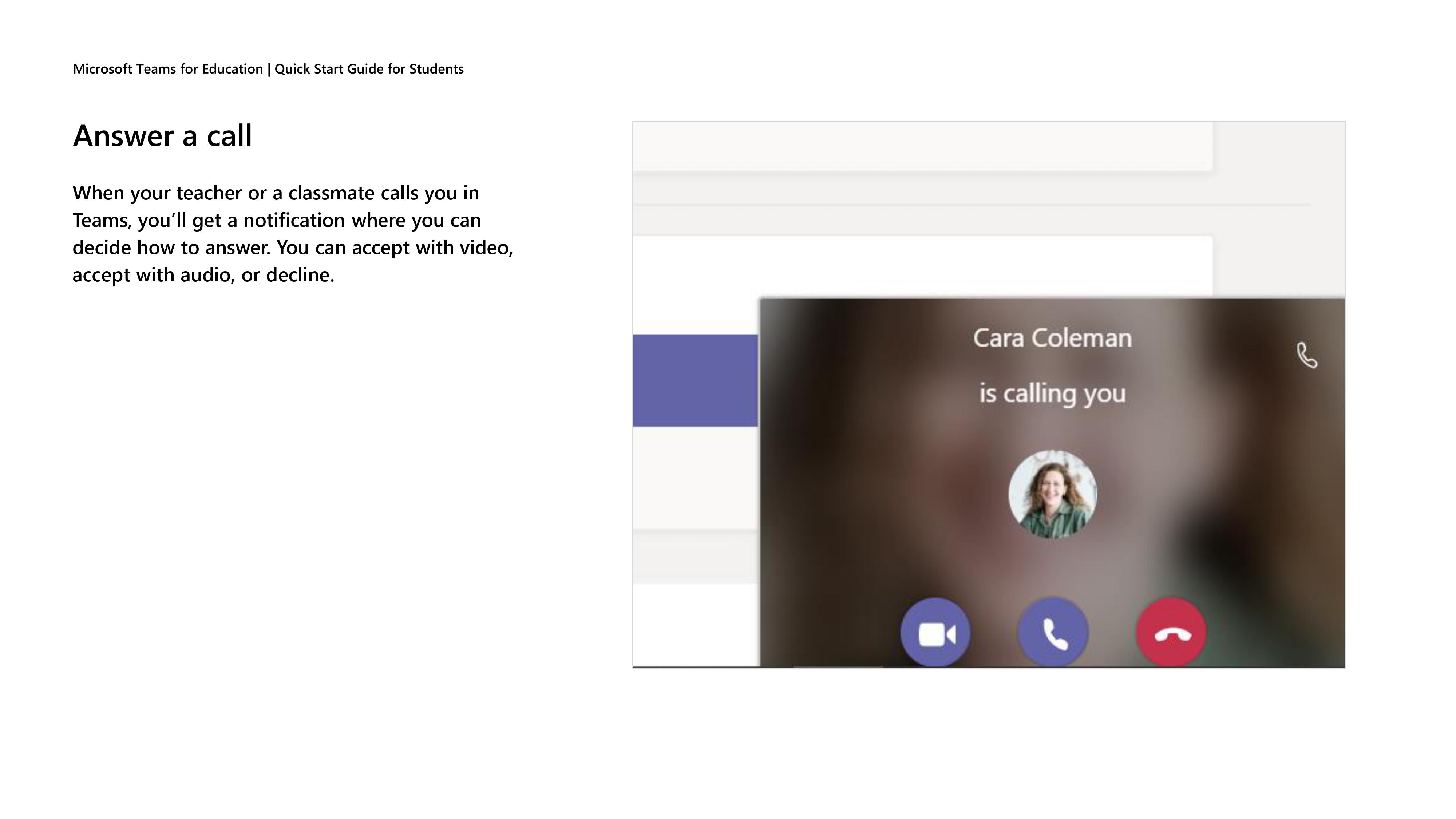
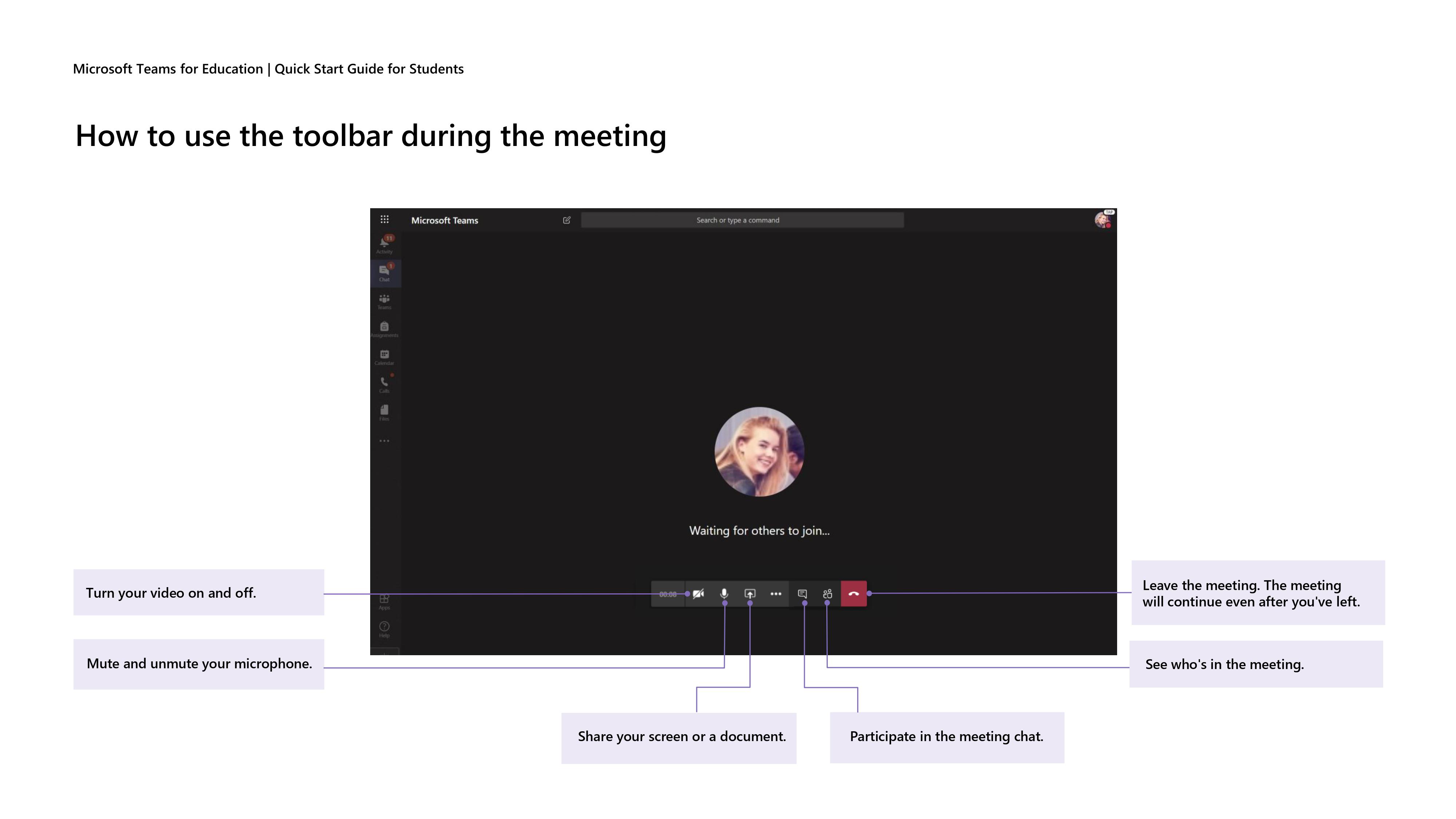
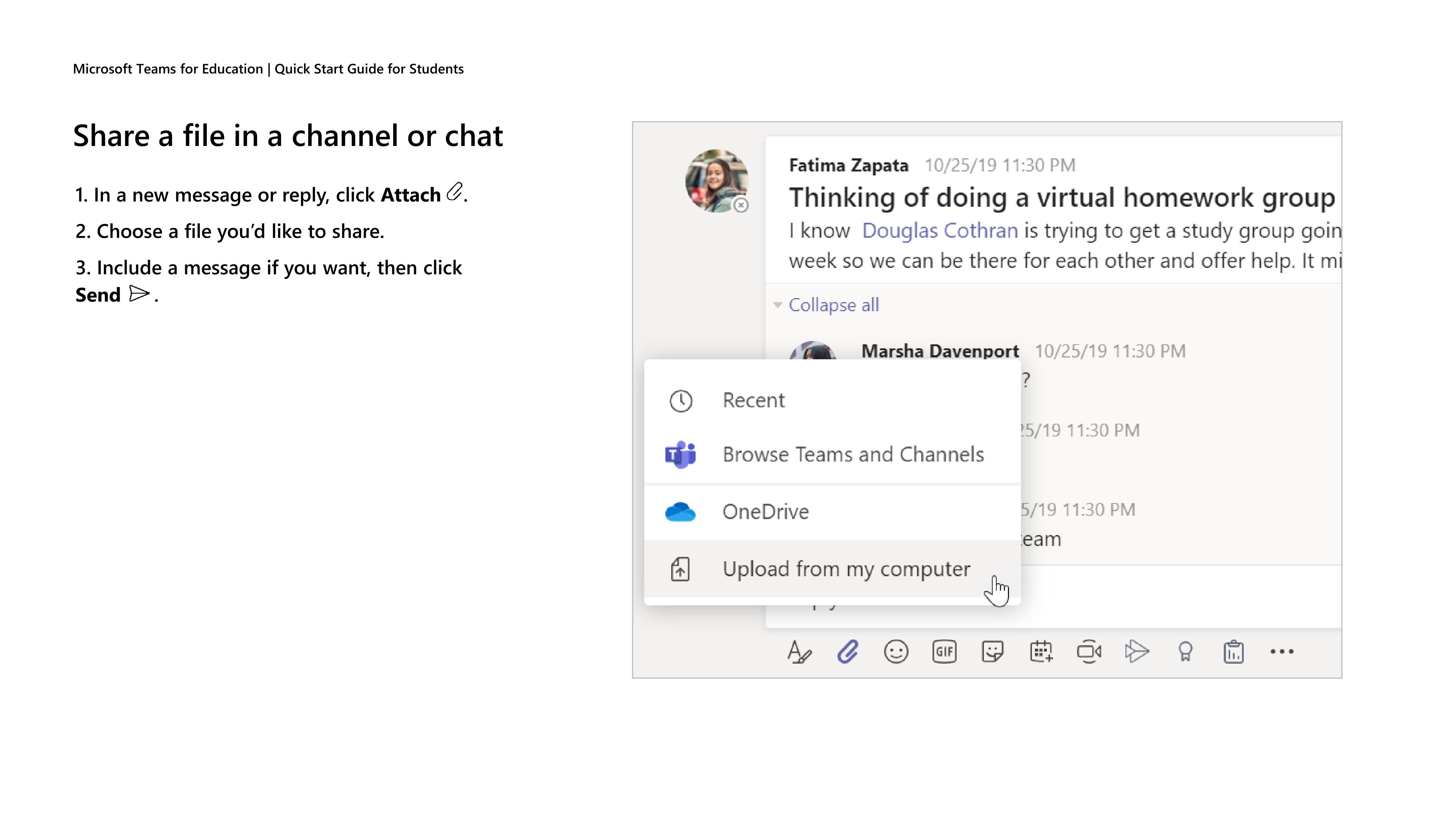
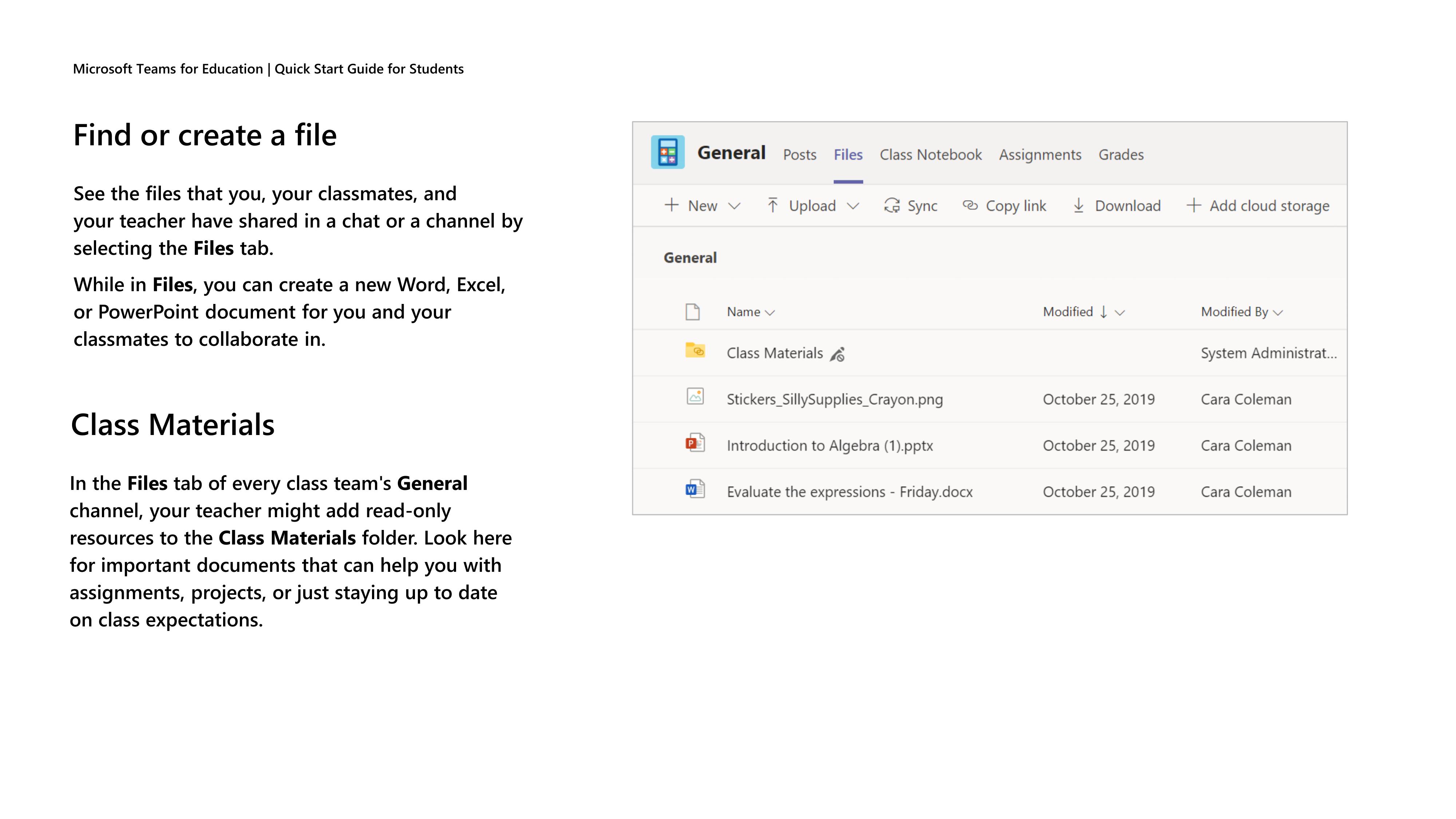
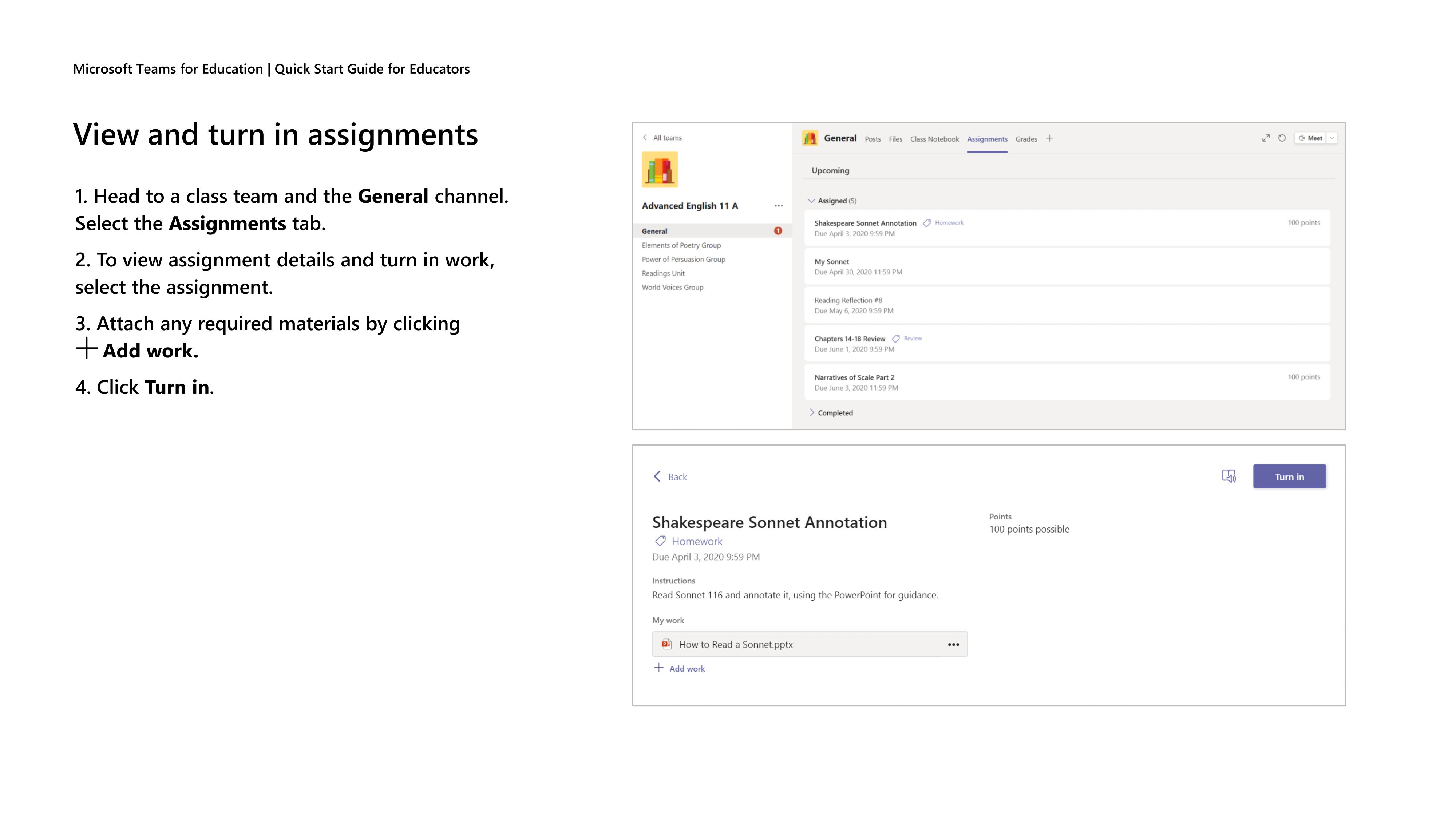
- Microsoft Teams for Education. Quick Start guide for students.
- Microsoft Office for free
- Trouble-shooting Microsoft Office Issues ( Cannot Activate)
- How many devices can I install my student version of Microsoft Office on?
- Access to MSDNAA/Microsoft Imagine
- What is Microsoft Azure Portal? (Student Guide)
- Cloud storage allocation for Google Workspace and Microsoft 365
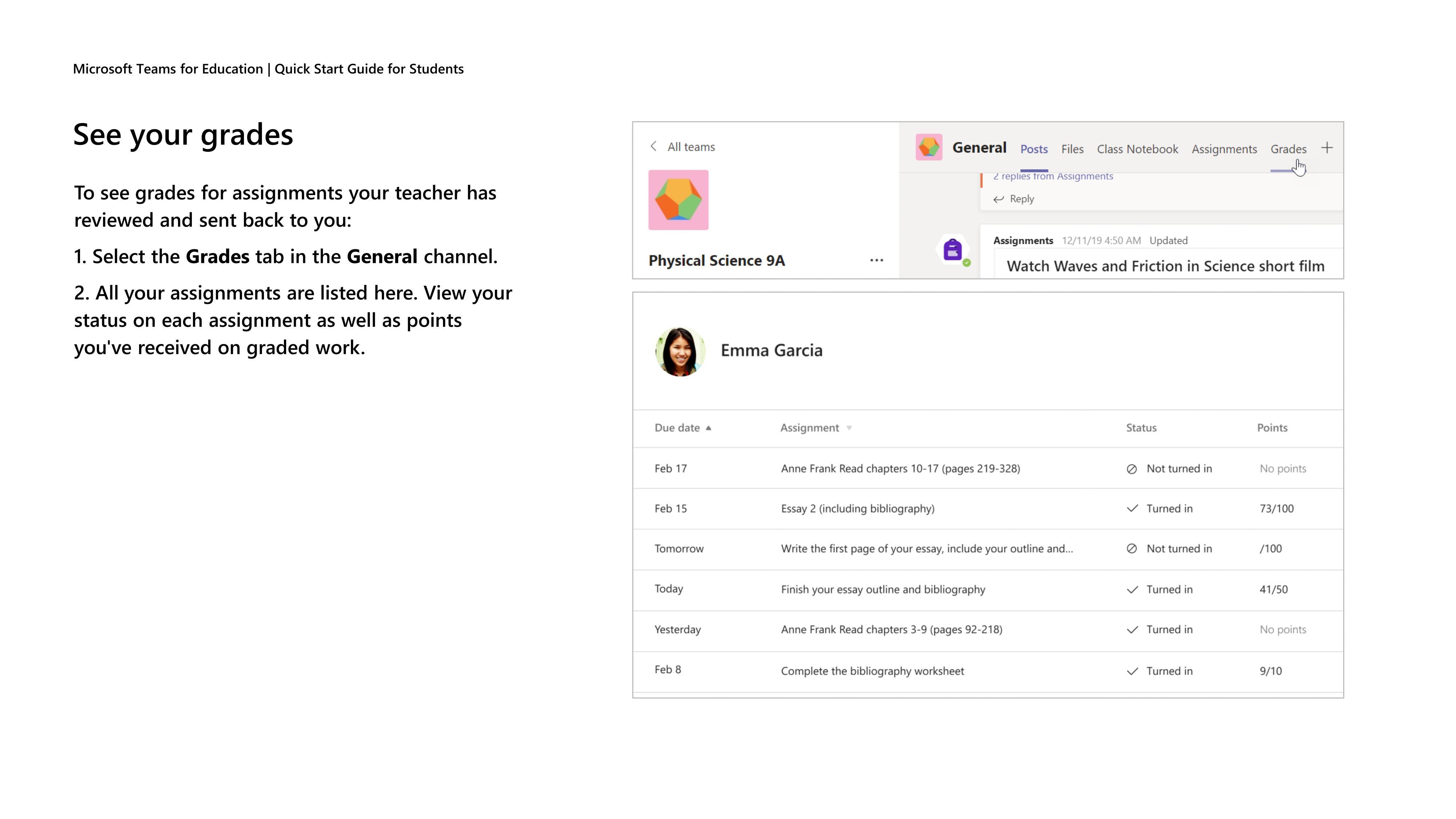
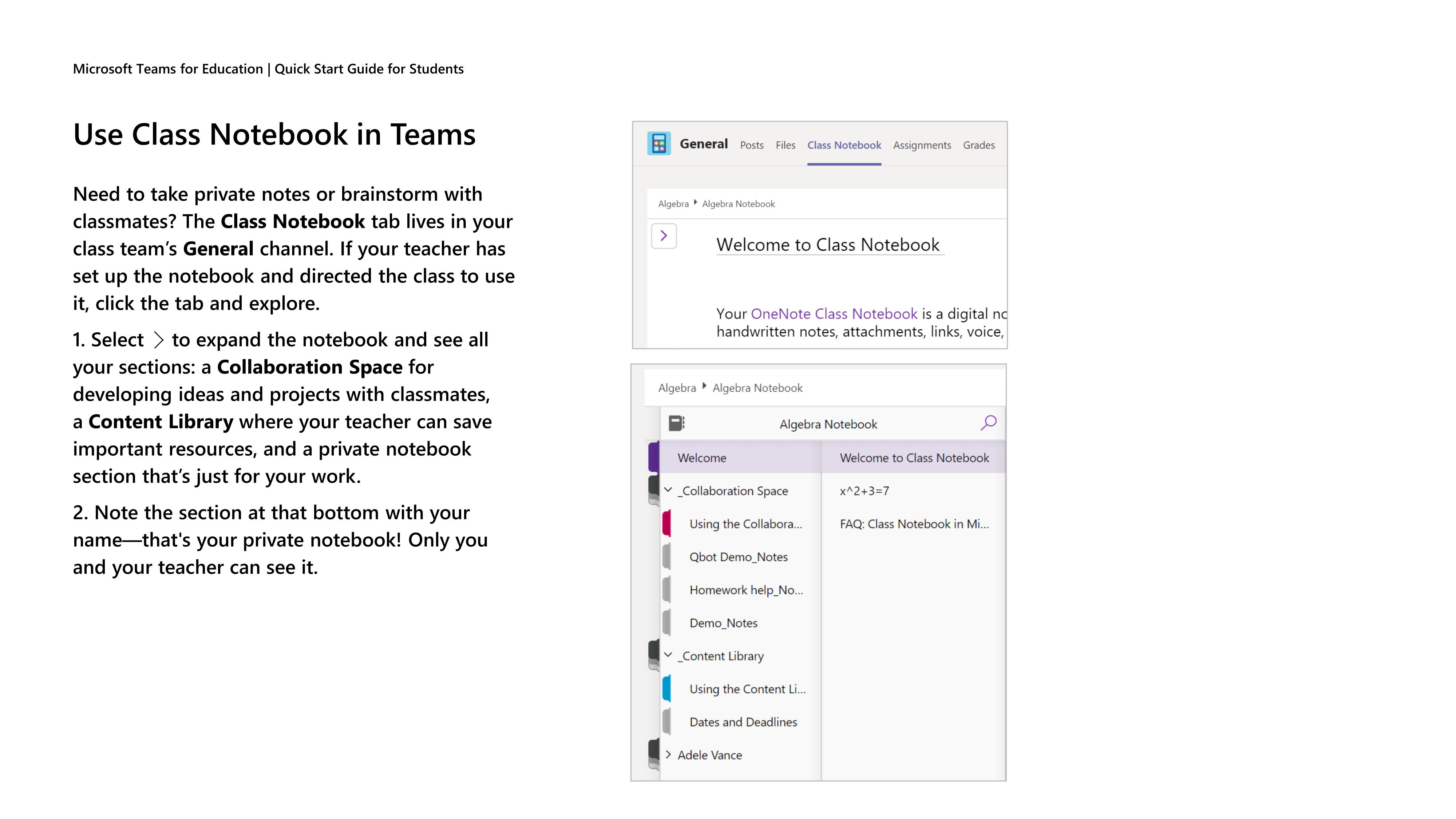
Microsoft Teams for Education. Quick Start guide for students.







Microsoft Office for free
Registered students are eligible to download and install Microsoft Office 365 for free, for up to 5 devices. To download, first you must activate your IIUM live e-mail. Follow these steps:
1. Go to http://portal.office.com
2. Key in your username (your full IIUM live e-mail address)
3. Key in your password – for first time login, the password is “iium” for local students and “iium” for international students, i.e. iium followed by your IC number or iium followed by your passport number, without any space.
Students who activate their IIUM Live e-mail account will get Microsoft Office for free. Students can download Office 365 and install it on their computers.
Trouble-shooting Microsoft Office Issues ( Cannot Activate)
After that, open MS Word and sign in using your LIVE IIUM email account for automatic activation.
Hope that helps. Thank you.
How many devices can I install my student version of Microsoft Office on?
You can install Microsoft Office for free on up to 15 devices in total (five installations on Windows and MAC devices, five installations on smart phones and five on tablet devices).
Please note, you are only able to install the applications on devices that you personally own.
Access to MSDNAA/Microsoft Imagine
After you have activated your IIUM Live e-mail address, you will receive an e-mail from Microsoft Imagine, which will give you instructions on how to activate your account.
https://imagine.microsoft.com/en-us
What is Microsoft Azure Portal? (Student Guide)
Microsoft Azure Portal is a web-based dashboard that allows users to access, manage, and deploy cloud services provided by Microsoft Azure. IIUM provides access to Azure for educational and research purposes, including free software, development tools, and cloud computing resources.
Key Features of Azure Portal for IIUM Users
1. Free Software & Developer Tools
-
Download Microsoft software (e.g., Windows Server, Visual Studio, SQL Server) via Azure Dev Tools for Teaching (formerly Microsoft Imagine).
-
Access development tools for coding, AI, and data science.
2. Cloud Computing & Storage
-
Create virtual machines (VMs) for projects.
-
Use Azure Blob Storage for secure file storage.
-
Deploy web apps and databases in the cloud.
3. Learning Resources
-
Free courses on AI, cloud computing, cybersecurity (Microsoft Learn).
-
Hands-on labs for students and researchers.
4. Research & Collaboration
-
High-performance computing (HPC) for large-scale research.
-
Share resources with team members securely.
How IIUM Students Access Azure Portal
-
Log in to Microsoft Azure Portal using:
-
Students:
username@live.iium.edu.my(IIUM Live email).
-
-
Navigate to:
-
"Azure Dev Tools for Teaching" (for free software).
-
"Virtual Machines" (for cloud computing).
-
Need Help?
-
ICT Help Desk: 03-6421 6666
-
Email: servicedesk@iium.edu.my
Note: Azure resources are for academic use only—commercial projects are restricted. 🚀
Cloud storage allocation for Google Workspace and Microsoft 365
We are delighted to share the latest developments on cloud storage allocation for Google Workspace and Microsoft 365.
Based on Mesyuarat MAPITA No. 1/2024 dated 5th March 2024, Jabatan Digital Negara (JDN) (formerly known as MAMPU) has subscribed to Google Services under the Government Hybrid Cloud Initiative. This subscription is valid from 1st March 2024 to 28th February 2028 (4 years). Effective 1st April 2024, students will receive 10GB under Google Workspace.
Furthermore, the Ministry of Higher Education (MOHE) has renewed the subscription to Microsoft 365, valid from 1st August 2024 to 31st July 2027 (3 years). However, the storage allocation remains unchanged, with students 5GB, effective 1st April 2024 for Microsoft 365.
ITD acknowledges the need for additional storage capacity within the KCDIOM community. To address this, an email will be sent to KCDIOM administrators and IT coordinators, furnishing details about additional storage capacity for Microsoft 365 and Google Workspace by 25th March 2024