Student Email Services
FAQs regarding email services.
- How do I activate my IIUM Google email?
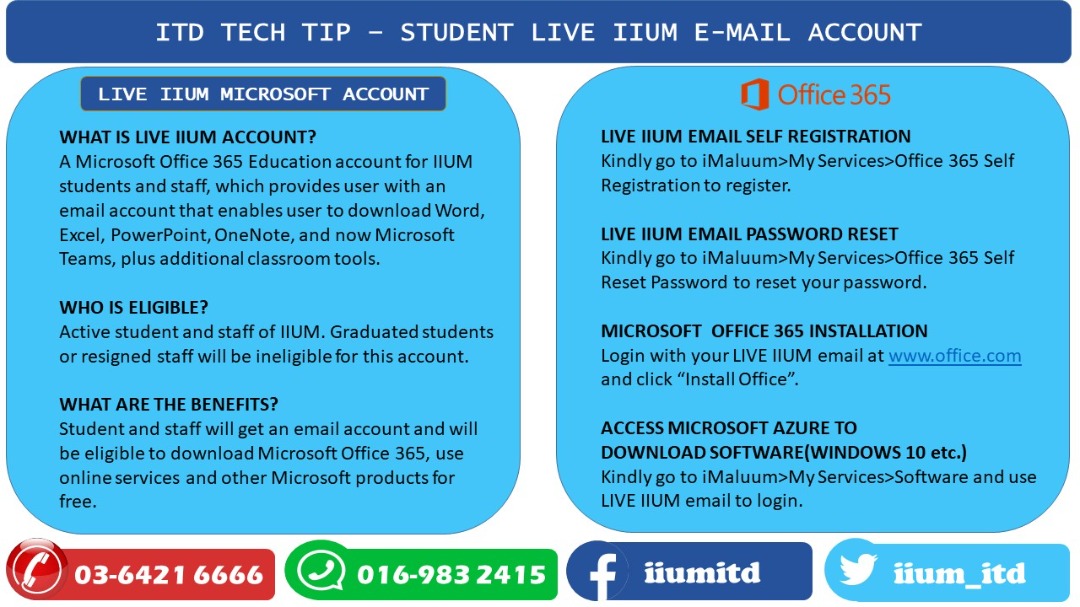
- How do I activate my IIUM Live email (for Microsoft 365)?
- IIUM e-mail address
- Microsoft LIVE IIUM email Info
- How to Fix Gmail Not Showing All Emails
How do I activate my IIUM Google email?
Q: How do I activate my IIUM Google email?
A:
-
Username:
matricno@student.iium.edu.my -
Default password:
Uia_IC/PassportNo(e.g.,Uia_890102201234). -
Log in and change your password.
How do I activate my IIUM Live email (for Microsoft 365)?
Q: How do I activate my IIUM Live email (for Microsoft 365)?
A:
-
Log in to i-Ma’luum (https://imaluum.iium.edu.my).
-
Under My Services, click Office 365 – Self Register.
-
Note your Live email (format:
username@live.iium.edu.my).
IIUM e-mail address
Registered students will get an IIUM e-mail address. All students will be assigned an IIUM Live e-mail address in the following format:
To check your IIUM e-mail address, login into i-Maluum (http://imaluum.iium.edu.my), then click on your photo at the top right corner, and then click on the “Profile” button. Here you will see your live IIUM e-mail address.
Microsoft LIVE IIUM email Info
How to Fix Gmail Not Showing All Emails
If your IIUM Gmail (Google Workspace) is missing emails, follow these troubleshooting steps:
1. Check the "All Mail" & Other Tabs
Gmail filters emails into categories.
-
Click "All Mail" (left sidebar) – Shows every email, including archived ones.
-
Check Promotions, Social, Updates, Spam tabs.
-
Search for missing emails (use keywords/sender name).
2. Disable Gmail Filters
Filters may auto-archive or delete emails.
-
Go to ⚙️ Settings → See all settings → Filters and Blocked Addresses.
-
Delete/disable any suspicious filters.
3. Check "Trash" & "Spam" Folders
-
Trash: Emails deleted in the last 30 days.
-
Spam: False positives may hide here.
4. Increase Gmail Storage
-
IIUM provides 15GB for Google Drive + Gmail.
-
If full, delete old emails or empty "Trash" & "Spam" permanently.
5. Sync Issues? Refresh or Reconnect
-
Browser: Clear cache (Ctrl+Shift+Del) or try incognito mode.
-
Mobile App:
-
Pull down to force sync.
-
Go to Settings → [Your Account] → Sync Gmail.
-
6. Check Forwarding & POP/IMAP Settings
-
Go to ⚙️ Settings → Forwarding and POP/IMAP.
-
Ensure emails aren’t being auto-forwarded or deleted.
7. Try a Different Device or Browser
-
Test on Chrome/Firefox or the Gmail mobile app.
8. Contact IIUM IT Help Desk
If emails are still missing:
-
Call: 03-6421 6666
-
Email: servicedesk@iium.edu.my
-
Walk-in: ITD Building, Gombak Campus
Prevent Future Issues
✅ Avoid overusing filters/labels.
✅ Regularly clean up storage.
✅ Check "Spam" weekly.
Note: IIUM staff/students use Google Workspace, so some features may differ from personal Gmail. 🚀