Ticket Management For Supervisor
How to Login
Two Ways
1) Click on this link: Ticket Listing (iium.edu.my)
Or
2) Click on the Sign In [1], then click on IIUM Community [2] .Click on the Administrator [3] and then click on Ticket Management [4].
Notes: Login is using CAS credentials.


Ticket Listing
- This is the main list of currently available tickets for the Supervisor. From here on, an Agent is a synonym to Support.
- The tickets are listed based on the selected unit [1]; either the ones that had been assigned to the Supervisor (if the Supervisor is on the same selected unit), an Agent (of the selected unit), or not yet been assigned to any Agent or Supervisor.
- Canceled or Closed tickets are not shown. However, it can be searched based on its Ticket's Status Code
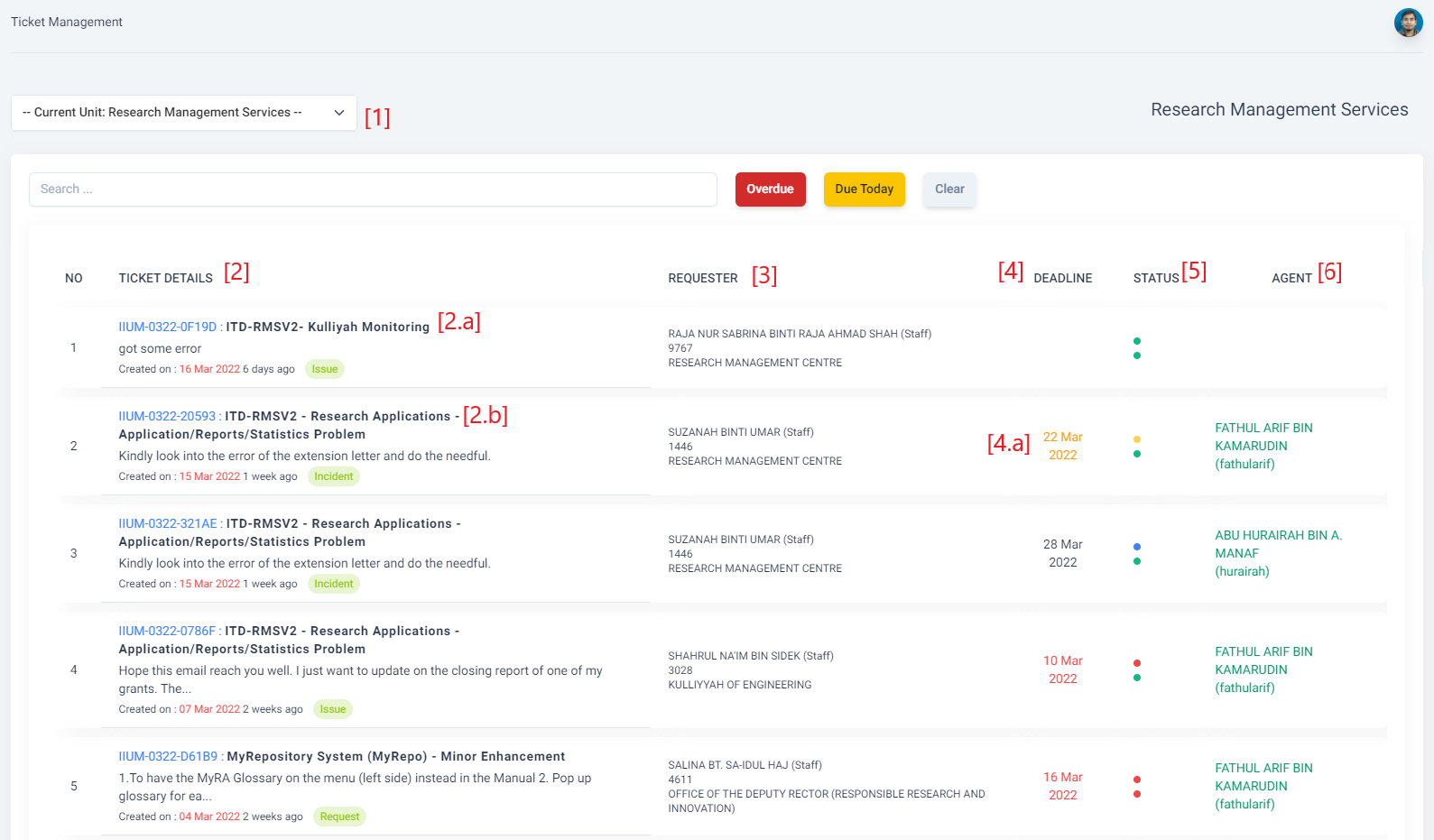
Ticket Table
Unit/Workgroup [1]
- Shows the selected Supervisor's and Subordinate's Unit. The Unit is also known as Workgroup
- Supervisor's own Unit is indicated by --Current Unit:
- The tickets are listed based on the Unit Name. Selecting different Unit Name (Subordinate's) will list out tickets of that particular Unit
Ticket Details [2]
- Shows the Ticket ID, Service Name, Service Details, Description, Date of Creation, and Ticket Type
- Click on the cell listed under the TICKET DETAILS column to update or view more info on the ticket
- A ticket will have its ticket's ID e.g IIUM-0322-Y782. The number on the middle of the dash -0322- represents the month and year the ticket was created at. -MMYY-
- Some tickets will only include only Service Name [2. a] and some will include both Service Name - Service Details [2 b]. The Service Details will only appear once an agent has been assigned to the ticket. As such, a Due Date / Deadline [4] will also appear. For more info on how to assign a ticket to an agent, please visit the Ticket View Page
- A snippet of the ticket's description is shown under the Services. Click on the description to view more.
- The green-colored badge shows the ticket's type. Details on the left of it show the date of the ticket's creation
- The available types and its code are as follow
- Complaint - COM
- Incident - INC
- Inquiry - INQ
- Issue - ISU
- Request - REQ
- Standard Change - STC
- Suggestion - SUG
Requester [3]
- Shows the Name, Staff/Student Number, and KCDIO of the requester
- For more details on the requester, click on the Ticket ID [2. a]
Deadline [4]
- Shows the Due Date of the ticket
- An unassigned ticket does not have a Due Date. It will appear once the ticket has been assigned to an agent [4. a]
- The black-colored Due Date shows a ticket that has not yet reached the due
- The red-colored Due Date shows a ticket that has exceeded the due
- The yellow-colored Due Date shows a ticket that has reached the due
Status [5]
- Shows the Ticket Status and Ticket Priority
- The top-colored dot [5. a] represents Ticket Status whereas the bottom-colored dot [5. b] represents Ticket Priority
- Hover the colored-dot will show the description of each status and priority
- If the ticket's Due Date has been reached or exceeded, the current status displayed will be replaced with Due and Overdue respectively. The real status can be viewed by clicking on the ticket details [2]
- For Ticket Status,
- the green-colored dot shows the status New
- the blue-colored dot shows the status Assign, Reassign, Work In Progress, Job Done By Support, Ready to Test, and Needs Info
- the red-colored dot shows the status either Canceled or Overdue
- the yellow-colored dot shows the status Due
- the gray-colored dot shows the status Closed
- For Ticket Priority,
- the green-colored dot shows the status Normal
- the red-colored dot shows the status Higher
- the yellow-colored dot shows the status Medium
- The available statuses and its code are as follow
- Assign - ASG
- Canceled - CCL
- Closed - CLO
- Job Done By Support- JDS
- New - NEW
- Needs Info - NIF
- Postponed - POS
- Reassign - RSG
- Work In progress - WIP
- The available priorities and its code are as follow
- Higher - H
- Medium - M
- Normal - N
Agent [6]
- Shows the Agent's Name and UserId
- The details will only be displayed once the ticket has been assigned to an agent
Ticket Search

Search [1]
- Shows the input field for querying ticket's information
- Below shows the list of available terms that can be searched within the search field
- Ticket Id
- Ticket Type
- Ticket Status Code, Name
- Ticket's Description
- Requester's Name, Email, Staff Number, UserId
- A ticket with Closed or Canceled status can be searched here; e.g CLO or CCL
Overdue [2]
Due Today [3]
Clear [4]
Ticket View
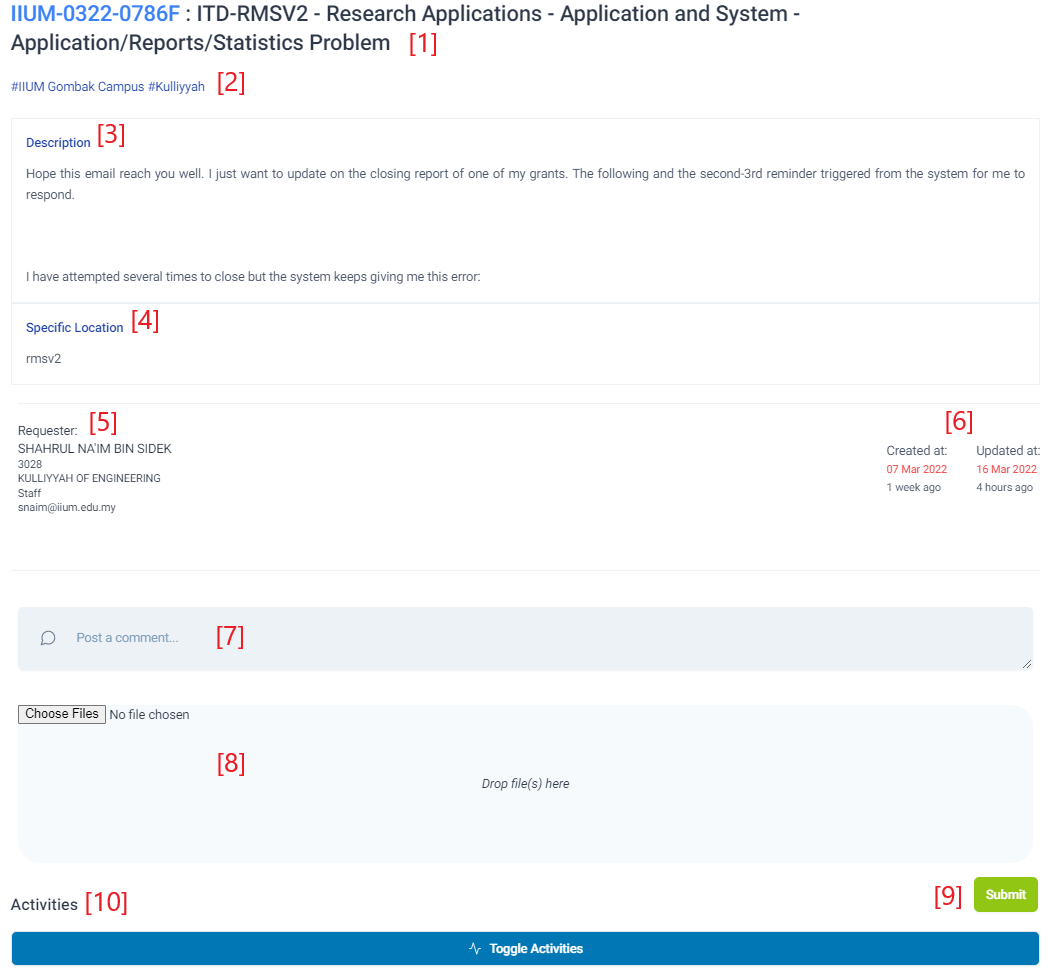
Ticket Info
- [1] shows the Ticket ID, Service Name, Service Category, and Service Details
- Ticket ID is always available. However, Service Name only appeared if it has been set by Supervisor or ServiceDesk Manager
- Service Detail only appeared if both an Agent and Service Specification has been assigned. Assigning an Agent and Service Specification can be performed by an Agent, Supervisor or ServiceDesk Manager.
- [2] shows the Campus and Location of the ticket
- [3] shows the Description of the ticket. Clicking on the header can toggle open and close
- [4] shows the Specific Location of the ticket. Clicking on the header can toggle open and close
- [5] shows the Requester's Detail of the ticket.
- [6] shows the Date Created and Date Updated of the ticket.
- Attachment may be included by requester which appears below [5] and [6]. Clicking on the attachment will open a new window to view the attachment
- [7] shows an input field to provide progress, comment, or info for the ticket
- [8] shows an input field to upload attachments when providing progress, comment, or info for the ticket
- [9] shows the Submit button to submit the progress, comment, info, or attachments for the ticket. This button can be used alongside with Update Ticket button to update the ticket
- [10] shows the Activities of the ticket. Clicking the Toggle Activities button will open or close the Activities
Ticket Activities
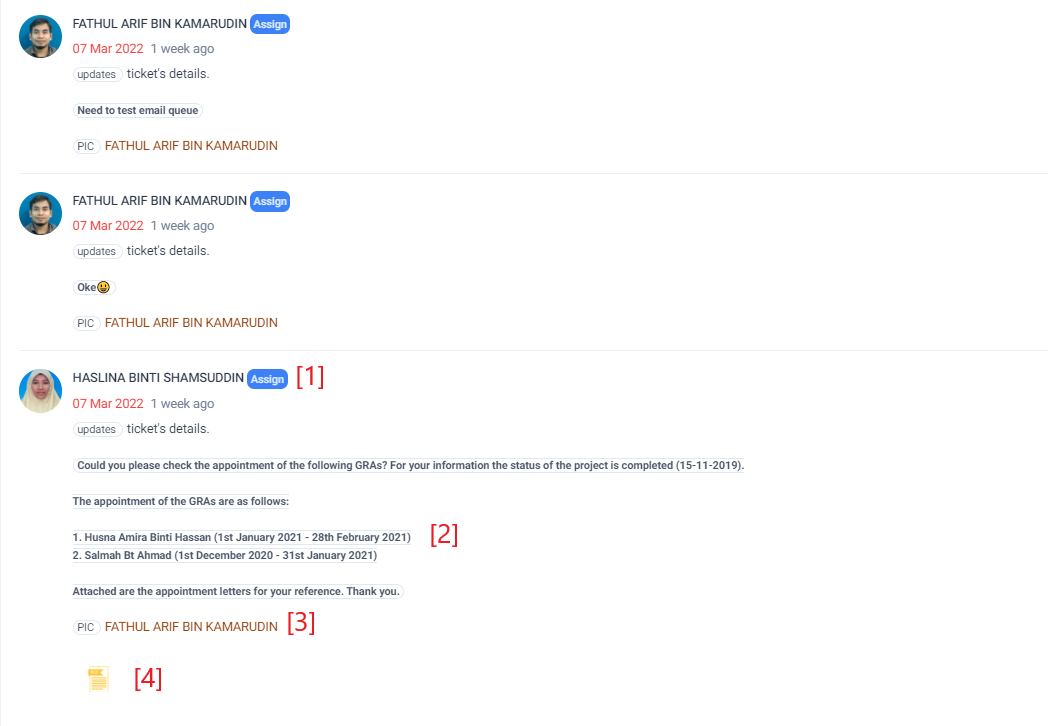
- [1] shows the Agent's/Requester's Name and Ticket Status of the ticket
- [2] shows the description, progress, comment, or info of the ticket
- [3] shows the PIC of the ticket
- [4] shows the Attachments of the ticket
Ticket Details
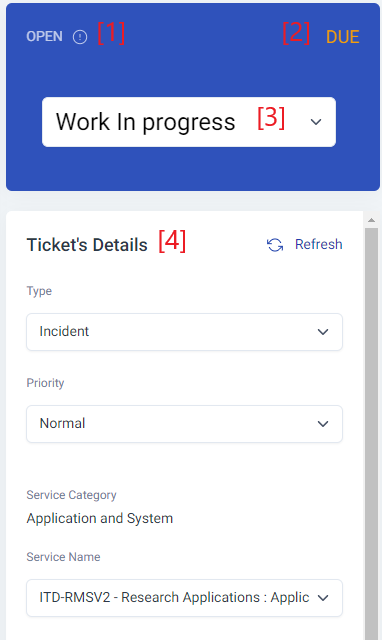
- [1] shows the ticket's State. It will show Open until the ticket's status is changed to Canceled or Closed. The ticket's State then will reflect a similar status
- [2] shows the status of Due or Overdue if the Due Date has been reached or exceeded respectively
- [3] shows the current Ticket Status. Agent, Supervisor, and ServiceDesk Manager can change its status
- [4] shows the overall ticket's details which can be changed by Supervisor. Since an Agent cannot change the details of the Ticket Type, Priority, and Service Name, it is the responsibility of the Supervisor to help make those changes on Agent's behalf
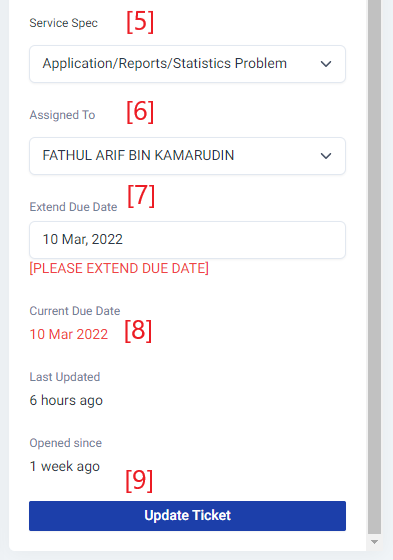
- [5] shows the Service Specification of the ticket. If selected, the PIC must also be selected
- The Service Specification list is dependent on the Service Name
- As such, if the Service Name is not specified, the Service Specification list will show empty
- If that is the case, the Supervisor can help to specify the Service Name only or Service Name, Service Specification, and PIC altogether
- [6] shows the PIC of the ticket. If selected, the Service Specification must also be selected
- The list shows the Unit Members, Unit Supervisor, and ServiceDesk Manager of the same KCDIO
- If the ticket is wrongly assigned to the Unit or KCDIO, an Agent or Supervisor can assign the ticket to the ServiceDesk Manager. Providing justification via the comment section is recommended
- [7] shows Extend Due Date field.
- An Agent or Supervisor is allowed to extend the due date if the Due Date has been reached or exceeded or the Current Due Date needs to be extended for any particular reason
- [PLEASE EXTEND DUE DATE] will be shown if the Due Date has been reached or exceeded
- [8] shows the Current Due Date. The default color is yellow and will change to red if the Due Date has been reached or exceeded
- [9] shows Update Ticket button. This button can be used alongside with Submit button to update the ticket