IIUM MyRepository (MyRepo)
The main purpose of the IIUM MyRepository is to collect data and evidence that are not captured by any existing systems in IIUM. Examples of data and evidence to be collected are academic/ professional memberships, awards/ recognitions/ stewardships, research gifts, etc.
- README FIRST: Updates On MYREPO
- Summary Notes on MyRa
- Submission Module
- Approval Module
- Collection Module
- FAQ
- How to enable/disable Dark Mode
- How to select multiple Appointment/Position in Memberships
- When clicking buttons, nothing is happening, why?
- Why there is no application listed in My Application eventhough submission has been performed?
- "The evidence field is required" message appeared even though the file is uploaded. Why?
README FIRST: Updates On MYREPO
Improvement: June 2022
- MyRepo has recently upgraded its system as a necessary preparation for future integrations and more straightforward upgrades and maintenance.
- We take note of your recent feedback and have successfully implemented most of the said improvements.
- As of now, the user manual may not reflect the entirety of the User Interface since the UI/UX has been changed with the upgrade, though the entire looks and feels are mostly the same.
- The updated manual is expected to be completed by the end of this month, Insya Allah.
- However, we have included a tooltip represented by the following image as a quick manual to help with the transition.

-
Clicking on the tooltip should display relevant information and guides on how to use the system
- If you encounter any problems, feel free to email me at fathularif@iium.edu.my. Thank you.
Summary Notes on MyRa
Section references
Notes
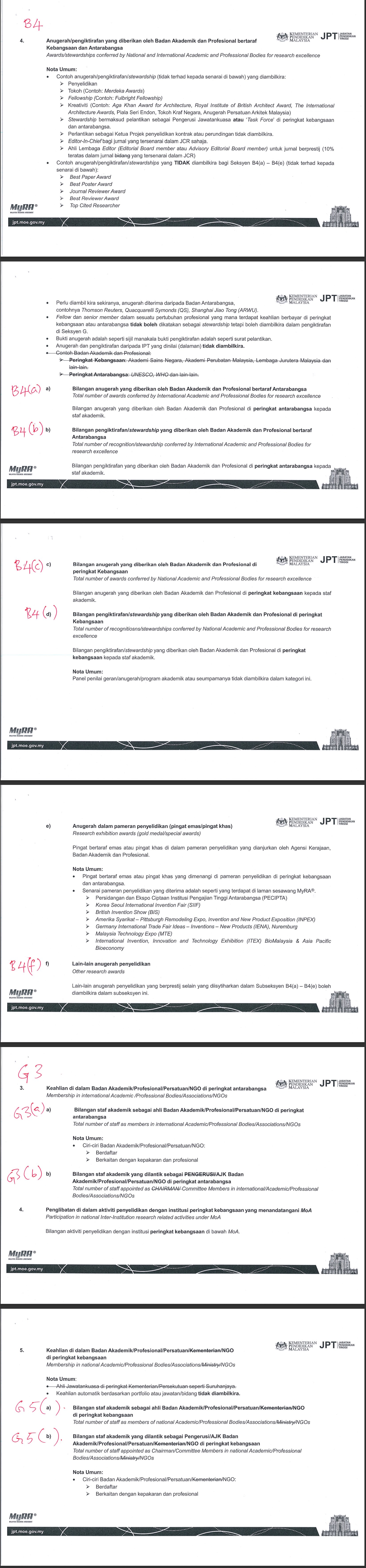
Submission Module
This is the main module of the system. All staffs can perform submission based on the relevant items
Visit MyRepo
- Go to link: myrepo.iium.edu.my
- User will be able to Login using CAS: Username & password are like HURIS.

Click the image to be directed to MyRepo.
Make Submission
Successful submission of the application will notify the KULLIYAH to approve or reject the application via email. For KULLIYAH, only application with the same Kulliyah will be notified
- Click on My Repository.
- Click on MyRa
- Click Make Submission to proceed.
- You can also click on the Welcome Card to proceed
- Click on the Submit button of the chosen item
- The staff name, staff number, and kulliyah will be automatically filled in
- Fill in the rest of field and its required fields.
- Tick For MyRa Purpose if the submission is for MyRa. Else, leave it untick by default.
- If you want to Save as Draft, choose Save as Draft option under Draft | Submit field
- If you are ready to Submit , choose Ready to Submit option under Draft | Submit field
- Click Proceed to commit the changes.
- A pop-up message will be shown for a successful application's creation.
- Click See My Submitted Application to see all of your applications.


My Application
- Submitted item for review is displayed under My Application by clicking My Repository->MyRa
- Staff can Edit/ Submit /Delete the application.
- To Edit, click button Edit. The steps for editing and submitting is similar as mentioned in the Making the Submission manual page
- To Delete the application, click Bin Icon.
- To see the details of the application, click View.
- Deleted application is thrashed. Click Open Thrash to Restore or Permanent Delete the item.
- Click Custom Sorting to sort the application based on collection and status.
- Click Clear Input to remove the sorting value.
- Click Search to search the items. The search term accepts title, id and category

Custom Sorting:

Search:

Delete:

Approval Module
This is the module accessible only for staff that has been added into KULLIYAH group. The assignation process is done by the ADMIN
Visit MyRepo
- Go to link: myrepo.iium.edu.my
- User will be able to Login using CAS: Username & password are like HURIS.
Click the image to be directed to MyRepo.
Application Approval
KULLIYAH/RMC/ODRRRI will be notify via email. For KULLIYAH, only application with the same Kulliyah will be notified
- Click on My Repository.
- Click on MyRA.
- Click Application Approval to proceed.
- Click View to see the details of the application
- Click Search to search for specific application. Accepted search term are staff name, staff number, application id and category
- After clicking View, Click Approve button to publish the application
- Click Reject button to reject the application. Application is sent back to user. Comment field must be filled.
- Click View to see the evidence.
- Click Cancel or Back to Application to cancel the task


Collection Module
This is the module accessible only for staff that has been added into KULLIYAH/RMC/ODDRRI/ADMIN group. The assignation process is done by the ADMIN
Visit MyRepo
- Go to link: myrepo.iium.edu.my
- User will be able to Login using CAS: Username & password are like HURIS.
Click the image to be directed to MyRepo.
Collection
Only staff under KULLIYAH/RMC/ODDRRI/ADMIN group can see the approved applications under each collection. The applications are visible to related Kulliyah only.
- Click Collection buttons to see the applications under each collection
- Choose the Collection
- Click View to see the metadata of the application
- Click Search to search for specific application. The accepted search term are staff name, staff number, title, application id and category. Click View to see the metadata of the application
- Click Export All to export all available published applications of the current collection
- After [3], application's evidence can be viewed and downloaded via clicking View.
- After [4], click Export Current Search Result to export the result.


FAQ
How to enable/disable Dark Mode


How to select multiple Appointment/Position in Memberships
For Windows, click and hold, then drag the available options
For Mobile, tick both of the options
When clicking buttons, nothing is happening, why?
Please refresh the page. Most probably the session has expired and needed to be authenticated to resume the session
Why there is no application listed in My Application eventhough submission has been performed?
Please select the MyRA Year
Or click Clear Input
"The evidence field is required" message appeared even though the file is uploaded. Why?
- The size of the file to be uploaded is currently capped at 50 MB (Previously it was at 12MB). Exceeding the capped size will cause the message to appeared.
- Compressing the file to be below the capped size before uploading is highly recommended .