Login with Two-Factor Authentication (2FA)
After Two-Factor Authentication (2FA) has been activated, future logins to the WordPress Dashboard will require an additional verification step.
Step 1: Open the WordPress Login Page
Open the WordPress login page.
Step 2: Enter Username and Password
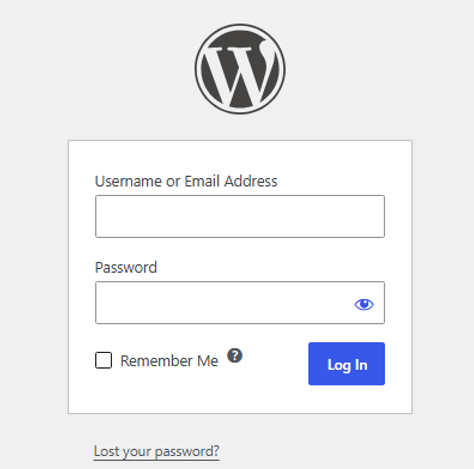
Enter your username and password as usual.
Step 3: Click Log In
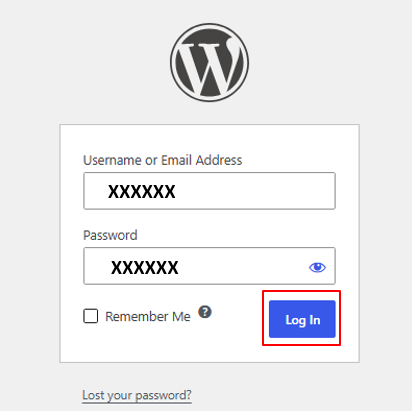
Click Log In.
Step 4: Enter the 2FA Verification Code
After your username and password have been successfully submitted, Wordfence will prompt you to enter your Two-Factor Authentication (2FA) verification code.
Open the authenticator application that you used to set up 2FA.
Locate the verification code associated with your WordPress account.
Enter the current verification code into the 2FA Code field.
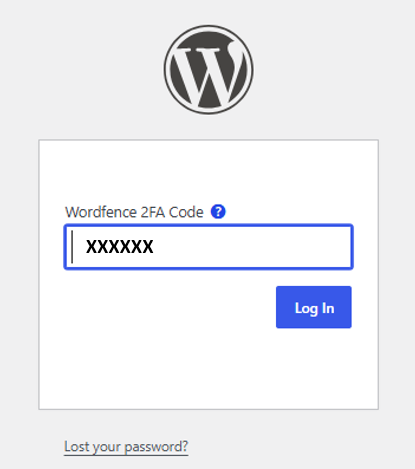
Note: The verification code changes automatically every 30 seconds. Please enter the current code displayed in your authenticator application before it expires and changes to a new code.
Step 5: Access the WordPress Dashboard
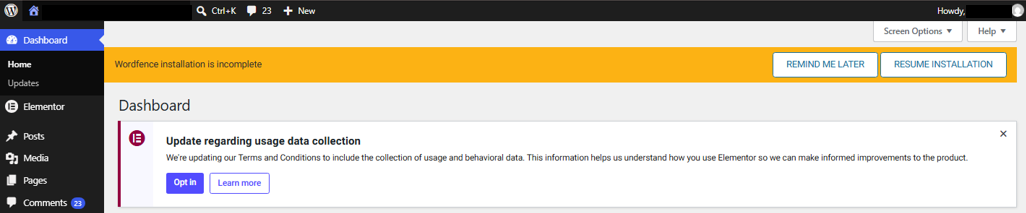
After the verification code has been successfully verified, you will be granted access to the WordPress Dashboard.