
Login Guide: Using a Mobile Phone
1. Visit the i-Attend portal at https://iattend.iium.edu.my.
2. Click the Get Started button located at the center of the page.
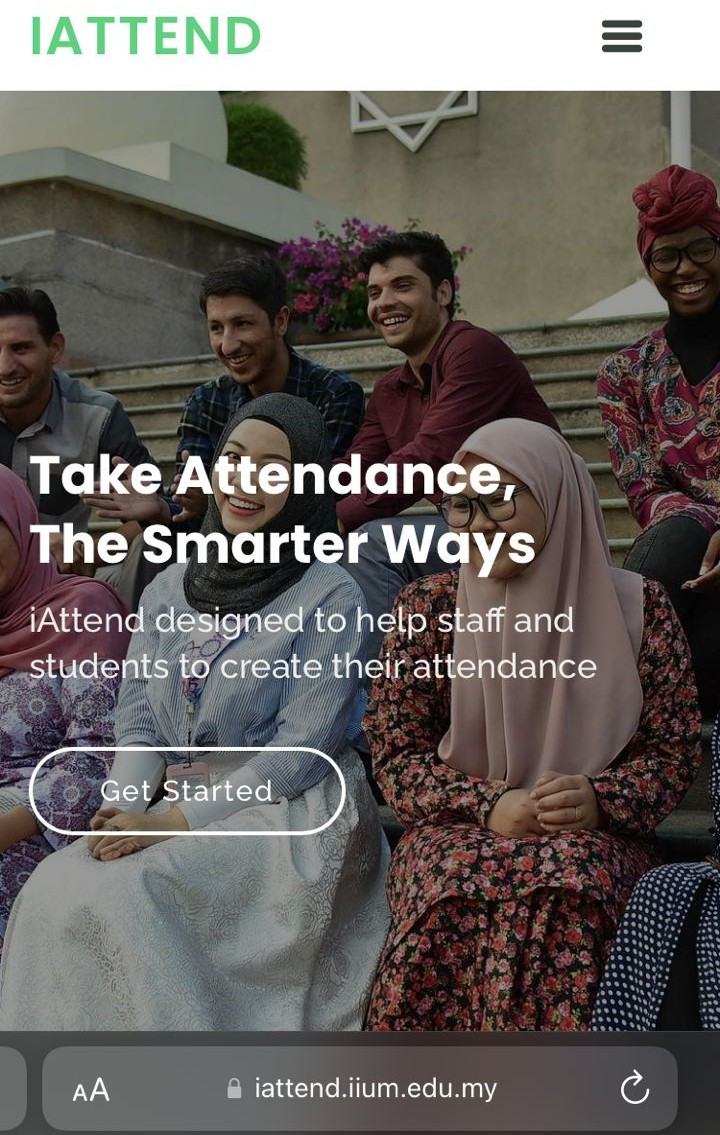
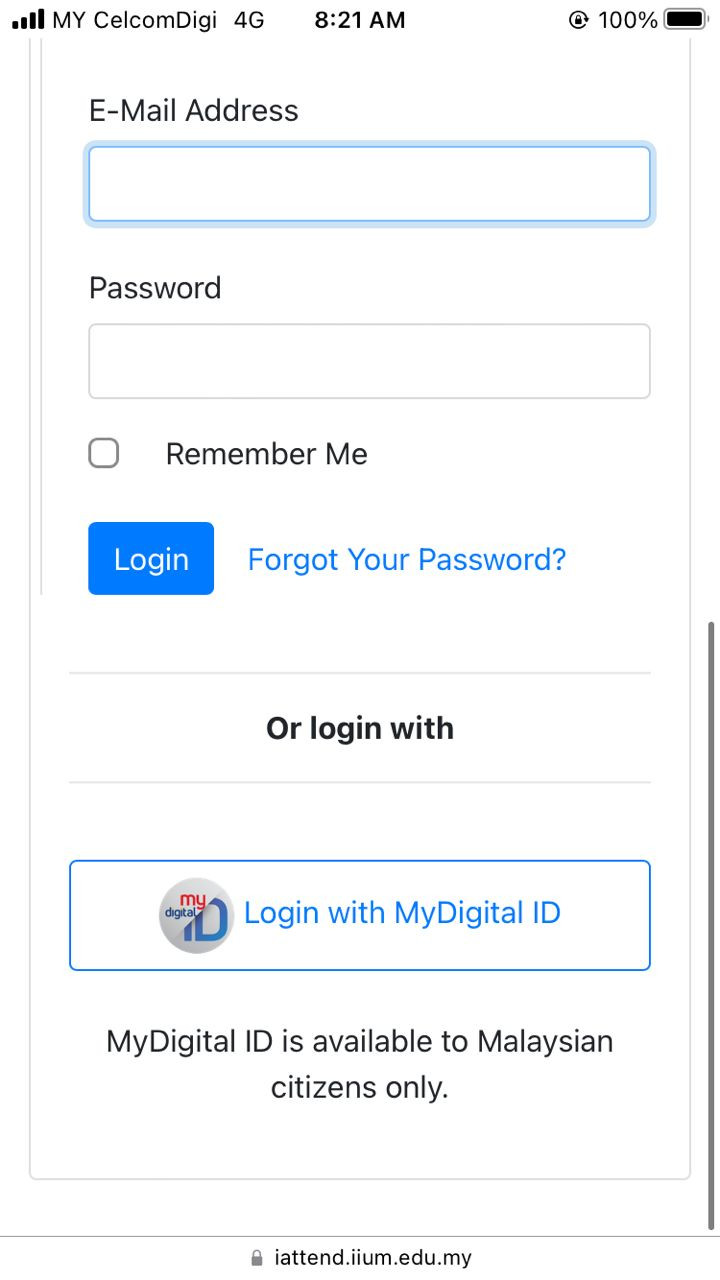
3. On the login page, click the Login with MyDigital ID button.
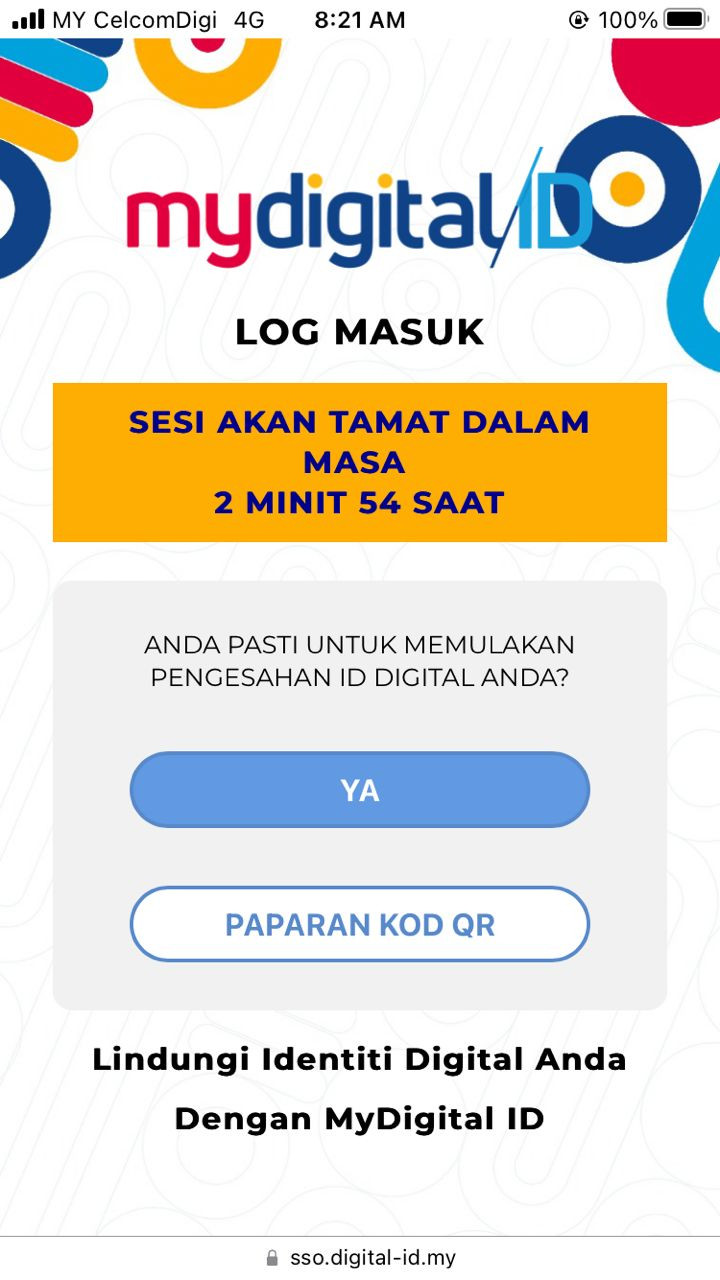
4. You will be redirected to the MyDigital ID authentication page. Click YA or PAPARAN KOD QR.
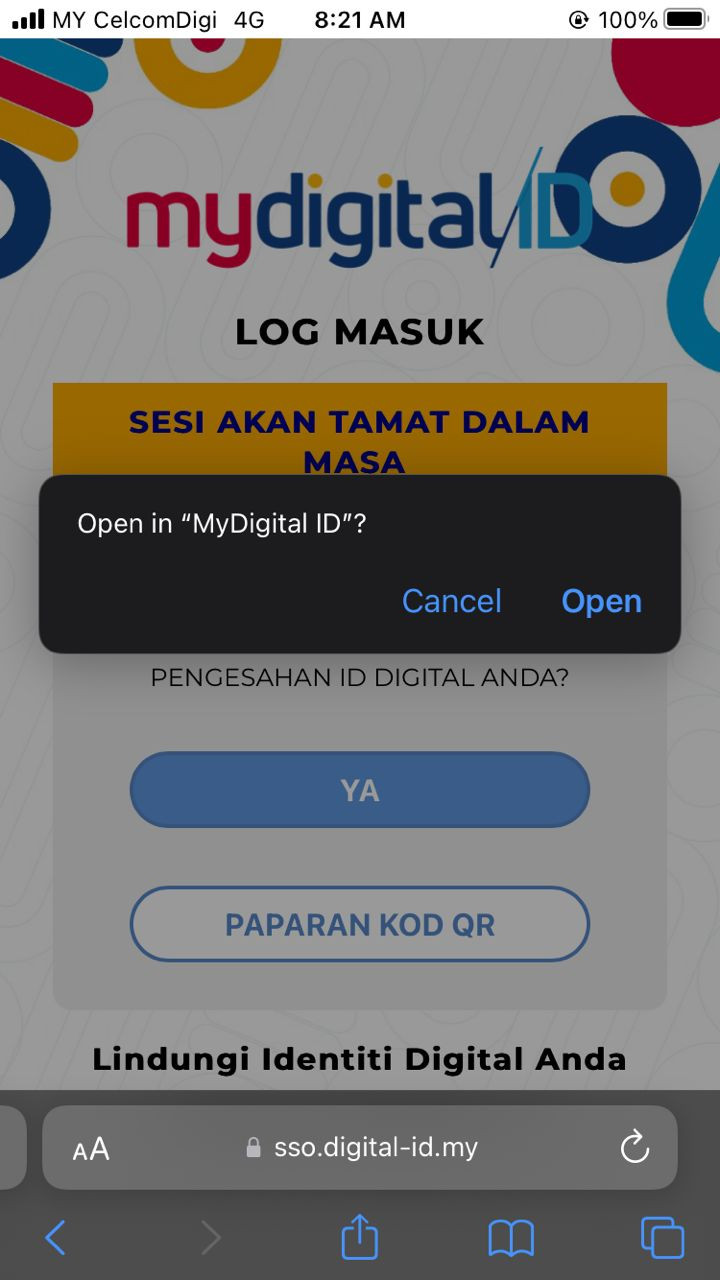
5. Tap Open to launch the MyDigital ID mobile application on your phone.
6. You will be redirected to the MyDigital ID application. Click Ya.
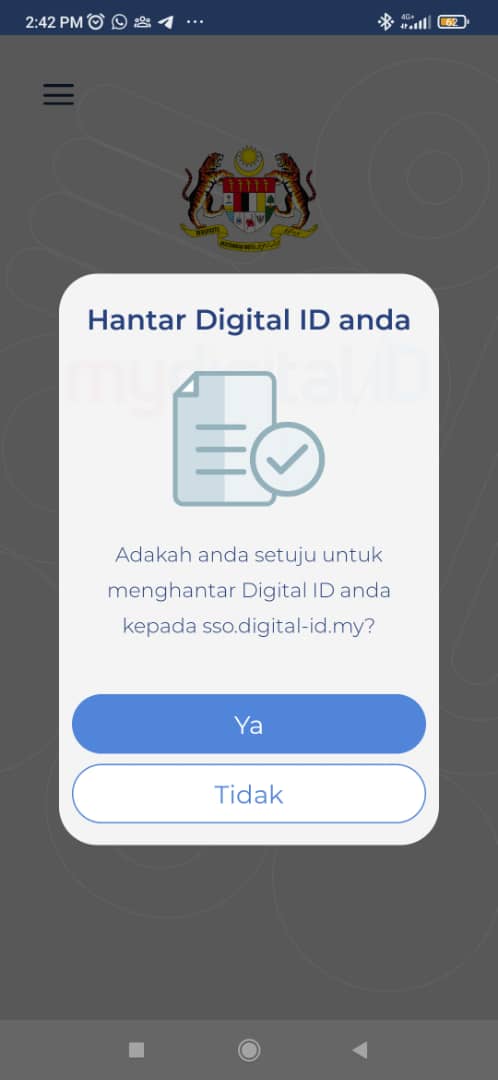
7. Enter the MyDigital ID password you created earlier and tap OK.
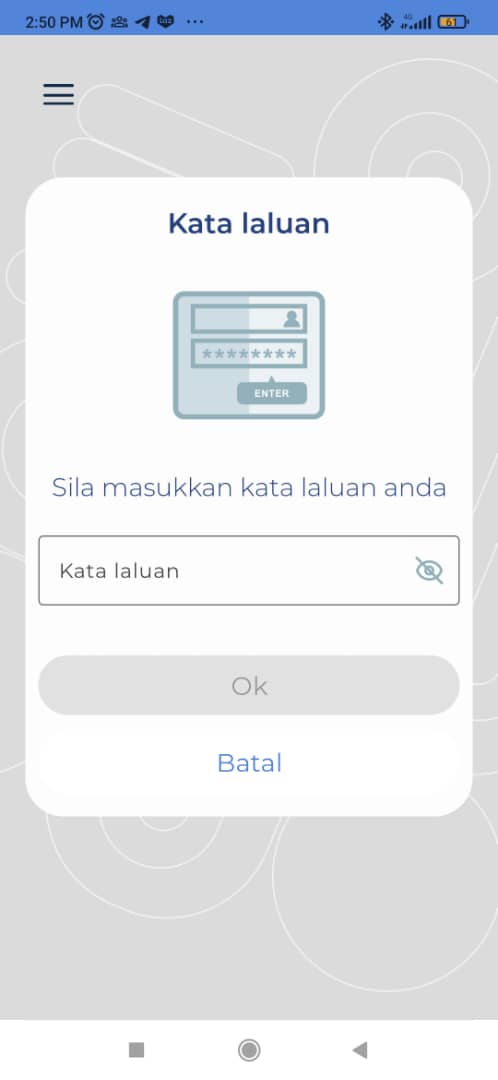
8. After a successful login, tap OK and return to your previous browser session.
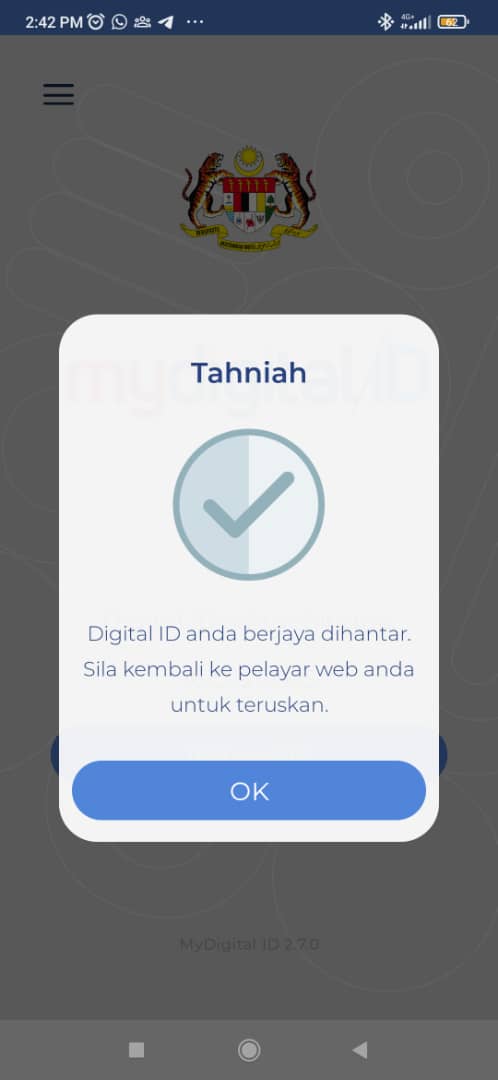
9. Once authentication is complete, you will be redirected back to i-Attend and prompted to select your login type.
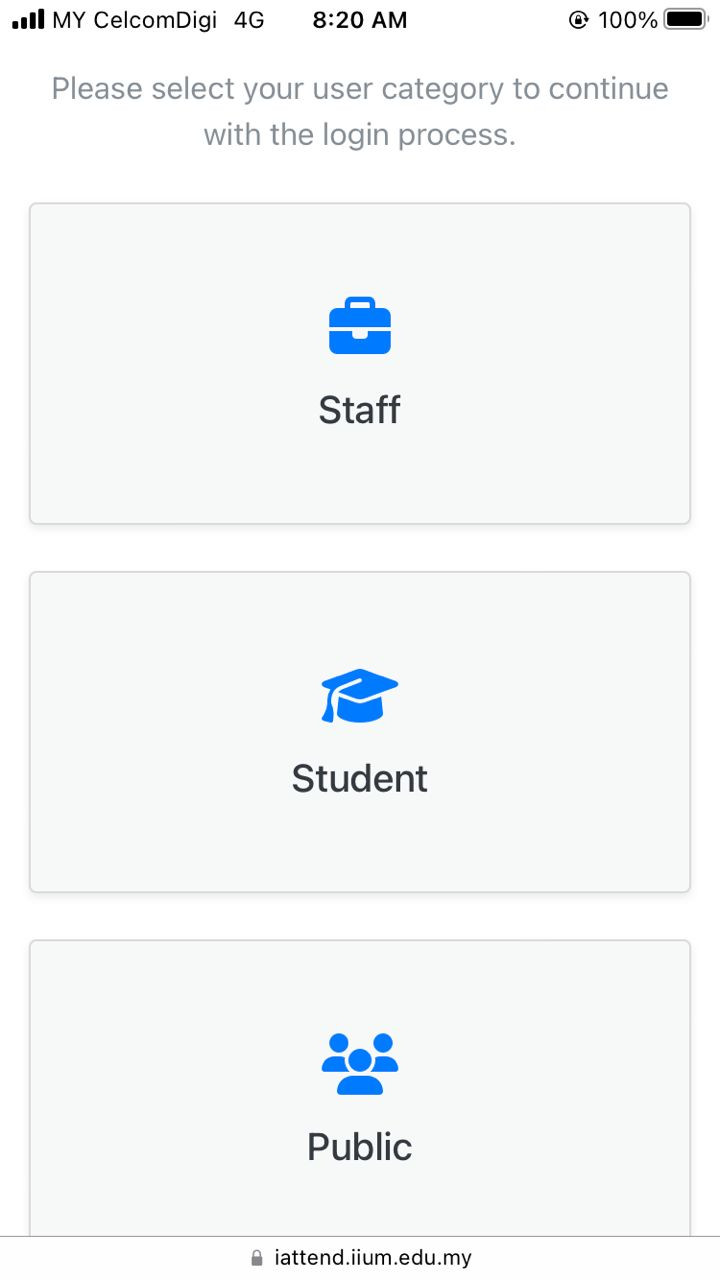
10. Choose the appropriate login type: Staff, Student or Public, based on your role.
- If you select Staff, your attendance will be recorded under the staff category.
- If you select Student, your attendance will be recorded under the student category.
- If you select Public, this option is intended for Alumni and External Users.
If you are both a Staff and a Student, please select the login type that matches the nature of the event:
-
- If the event is intended for staff, choose Staff.
- If the event is intended for students, choose Student.
This helps ensure that your attendance is recorded correctly and prevents errors in the attendance records.
If you are unsure which category applies to you, please contact the event organizer or system administrator before proceeding.
⚠️Important:
Please ensure that you select the correct login type. If you choose Staff or Student but your record does not exist in the corresponding database, an error message will be displayed indicating that no matching record was found.
11. Once the login type is verified, you will be successfully logged into the system.
No Comments